 BlockDistraction
BlockDistraction User Guide
Learn how BlockDistraction works, how blocking rules are created, and how to use Free and Pro features including Rule Packs, Rule List profiles, Daily Limits, schedules and Focus Sessions.
BlockDistraction is designed to be simple enough for immediate use, while still providing advanced tools for users who want precise control over their browsing habits.
You do not need an account or subscription to start using the extension. Install it, create your first rule, and distracting websites will be blocked directly in your browser.
How BlockDistraction Works
BlockDistraction works by creating browser-level rules that control what happens when you try to open a specific website.
Each rule contains at least one website address.
Depending on its configuration, a rule can:
- block access to a website;
- redirect the website to another address;
- use Always, Schedule, or Daily limit behavior in Pro;
- belong to the active Rule List profile in Pro;
- belong to a category;
- work as a Blacklist or Whitelist rule.
Once saved, the rule is applied by the browser automatically. BlockDistraction does not need to keep a website or server open in the background.
What happens when a blocked website is opened?
When the browser detects an address that matches one of your active rules, it prevents the requested page from loading.
Depending on the rule settings, BlockDistraction will either:
- display the built-in blocked page with a quiet explanation of why blocking is active;
- show a motivational message;
- redirect you to the destination specified in the rule.
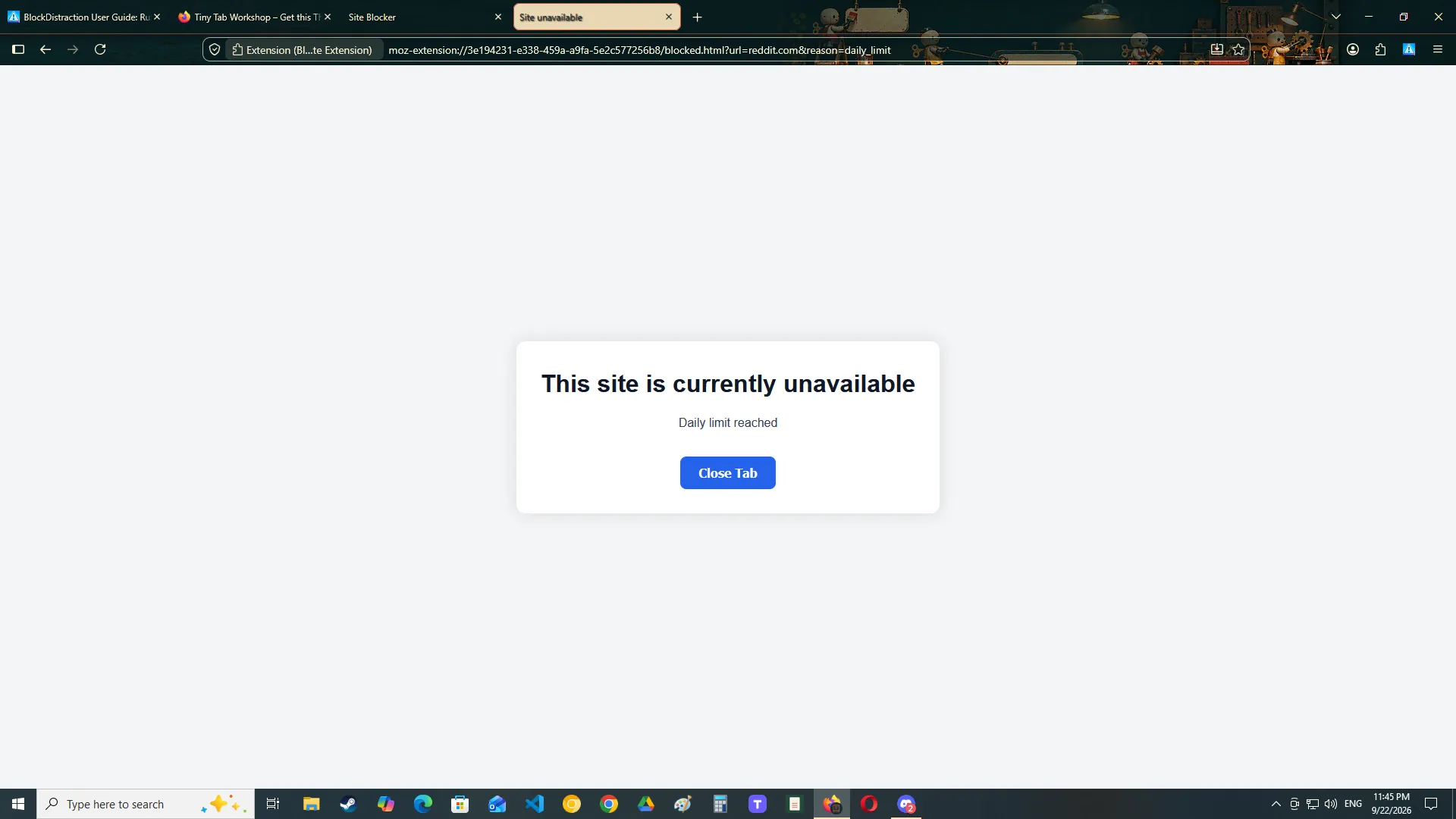
Rules remain active
Blocking rules continue to work after:
- closing the extension popup;
- closing the settings page;
- restarting the browser;
- restarting your device.
A rule remains in effect until it is deleted, changed, disabled by its active profile, category or assignment mode, or temporarily affected by another extension feature.
Creating Your First Blocking Rule
The easiest way to begin is to create a rule from the extension settings page.
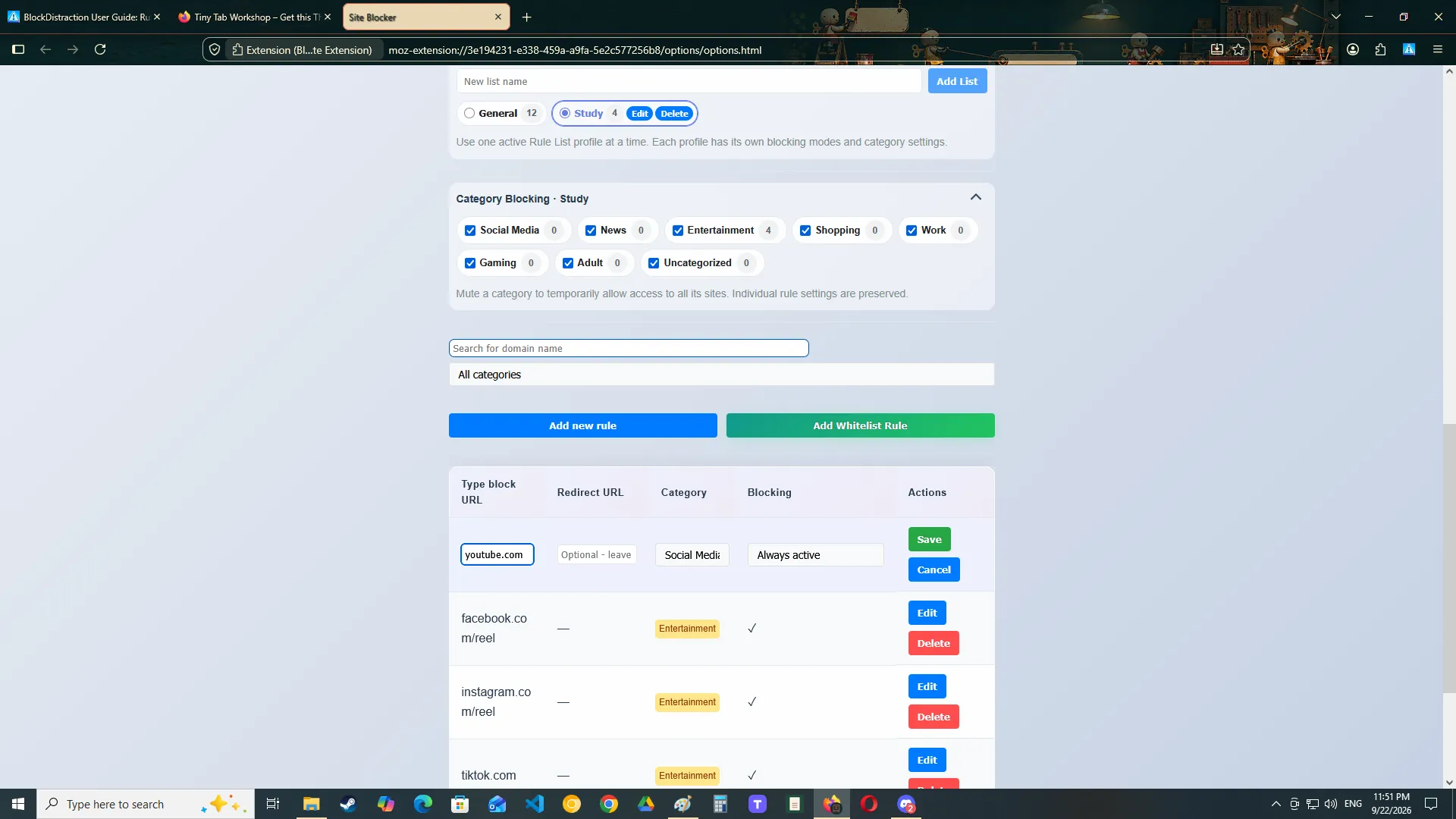
Step 1: Enter a website
Enter the website you want to block.
youtube.comYou usually do not need to include the protocol:
https://Step 2: Choose what should happen
Leave the redirect field empty to display the standard BlockDistraction blocked page.
To redirect the blocked website somewhere useful, enter another address in the redirect field.
https://calendar.google.comStep 3: Save the rule
Click Add Rule or Save, depending on whether you are creating a new rule or editing an existing one.
The rule becomes active immediately.
Pro rules are added to the Rule List profile that is active when you save them. The built-in General profile is active by default.
Test the rule
Open a new tab and try to visit the blocked website.
If the website is already open in another tab, BlockDistraction may close or replace that tab after the rule is created.
Understanding Website Addresses and Rule Matching
The address entered in a rule determines which pages will be affected.
Blocking an entire website
A rule containing only the domain name is intended to block the website broadly.
reddit.comThis is useful when you want to block the entire service rather than one specific page.
Blocking a specific section
You can include a path to target a particular part of a website.
youtube.com/shortsThis allows you to block YouTube Shorts while keeping the rest of YouTube available.
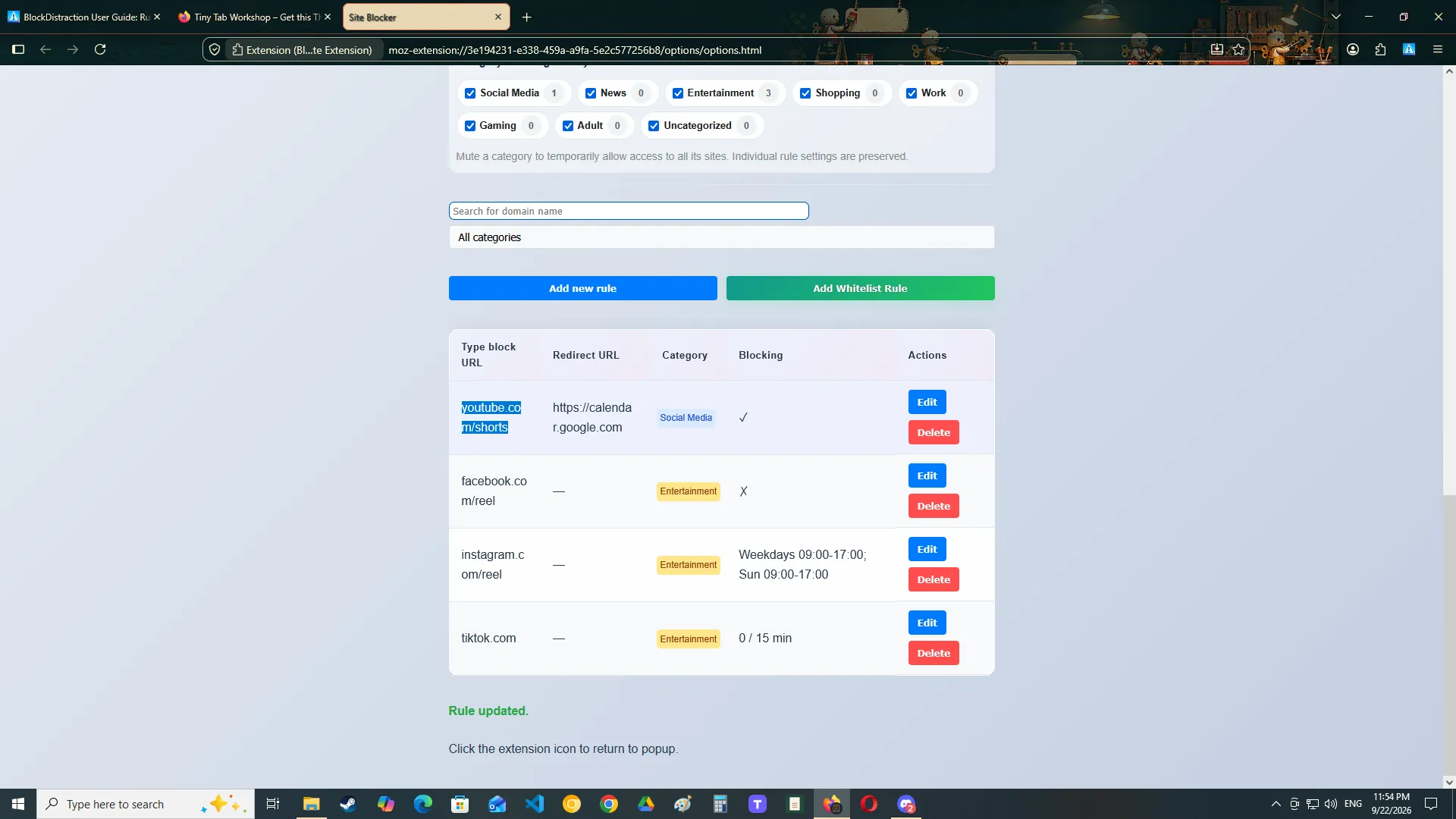
Manual rules and instant blocking
Rules created manually may preserve the full address or path that you entered.
Instant Blocking is designed for speed and usually creates a broader domain-level rule.
Use:
- manual rules when you need precise control over a path or redirect;
- Instant Blocking when you want to block the current website quickly.
Subdomains
A website may use different subdomains for different services.
mail.example.com

docs.example.com
app.example.com
Check the final rule carefully when blocking a service that uses multiple subdomains.
Blocking and Redirecting Websites
Every standard rule can either block a website or redirect it.
Blocking
To block a website, leave the redirect address empty.
When the rule is triggered, BlockDistraction displays its built-in blocked page.
Redirecting
Enter a destination URL when you want to replace a distracting website with a more useful one.
Blocked address:

reddit.com

Redirect address:
https://todoist.com
This can be useful when you want an automatic reminder to return to work.
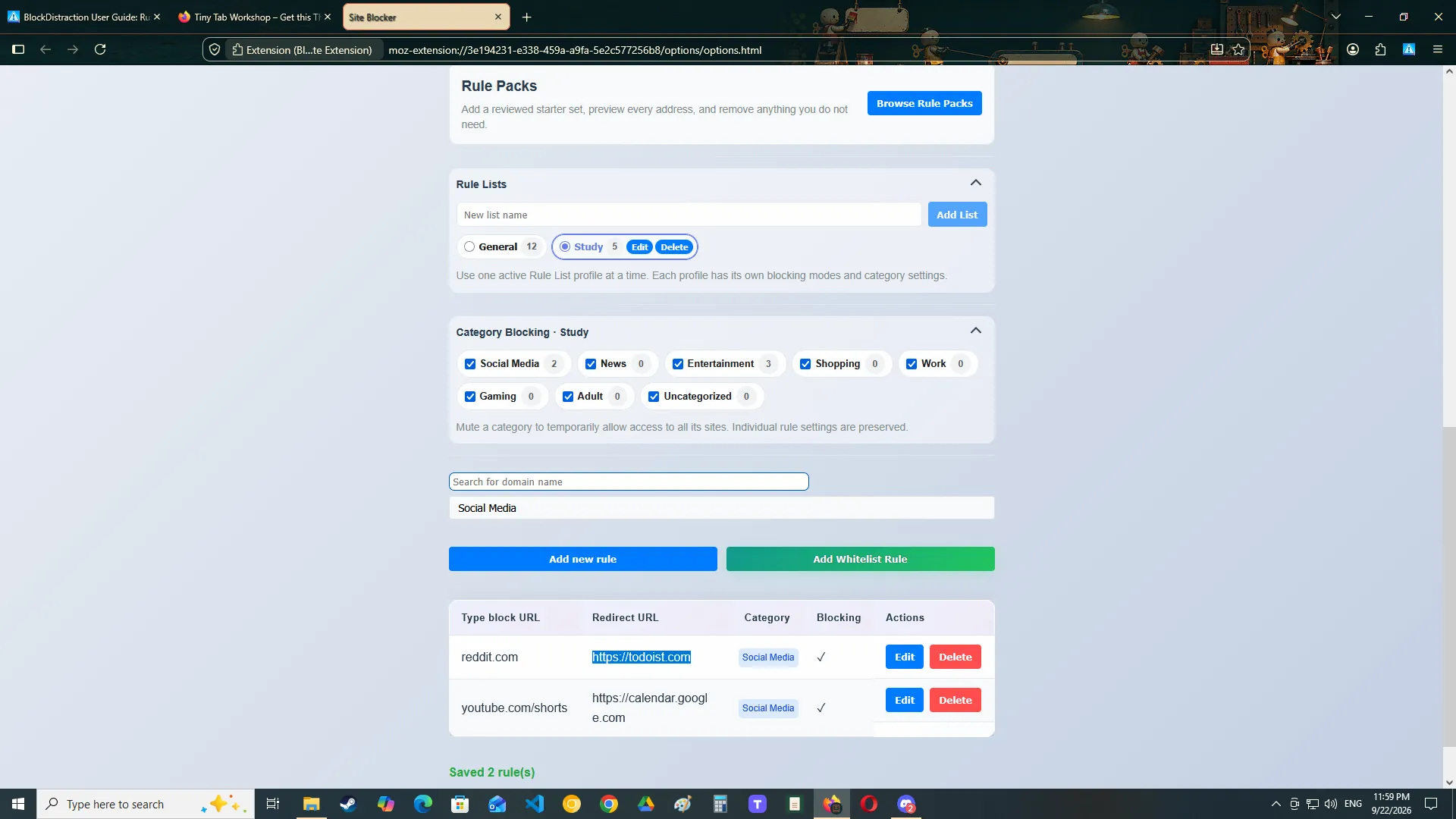
Avoid redirect loops
Do not redirect a rule to another address that is also blocked.
For example, if both reddit.com and
todoist.com are blocked, redirecting Reddit to Todoist may
not produce the intended result.
Instant Blocking
Instant Blocking lets you block the website currently open in your browser without manually copying its address.
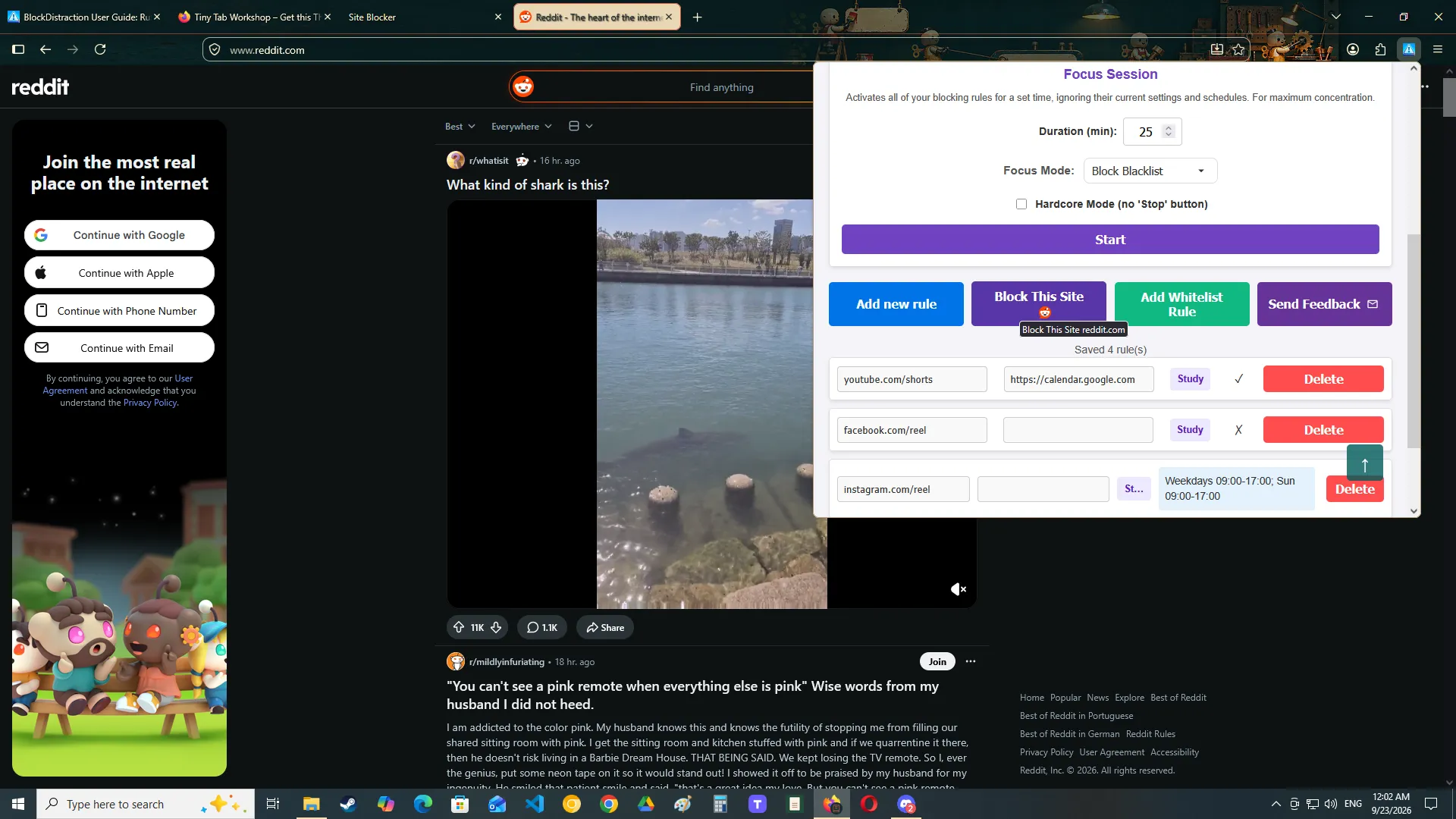
How to use Instant Blocking
- Open the distracting website.
- Click the BlockDistraction toolbar icon.
- Use the Instant Blocking control.
- Confirm the new rule if required.
The rule is created immediately.
Instant Blocking is best for quickly blocking an entire website.
For a specific page, path, or redirect, use the full settings page instead.
Managing Rules
The settings page displays the rules assigned to the currently active Rule List profile. Free users work in the built-in General profile.
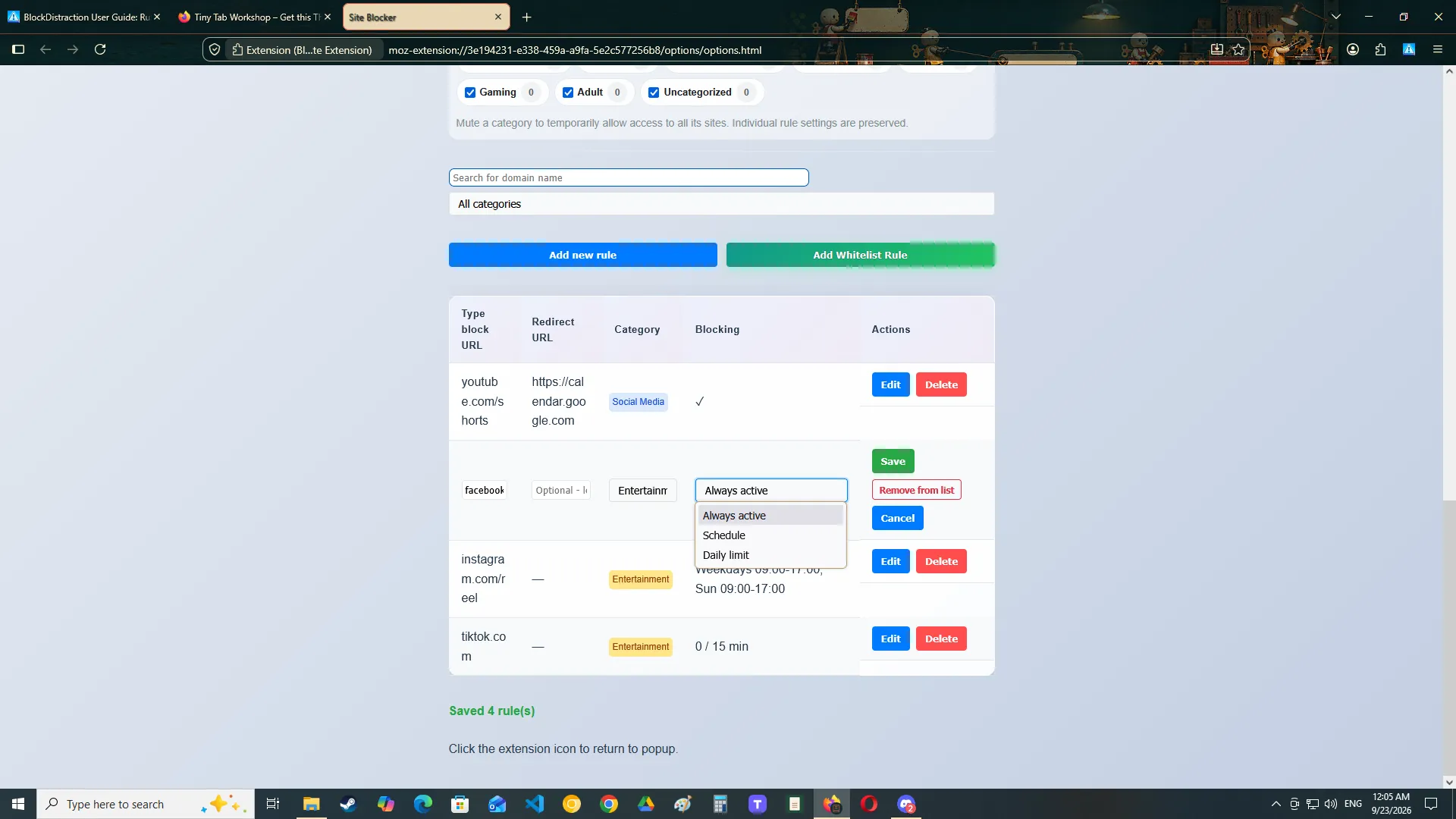
From this page, you can:
- edit a rule;
- delete a rule;
- search for a rule;
- filter rules by category;
- review Always, Schedule, or Daily limit behavior;
- manage Blacklist and Whitelist entries.
Editing a rule
Click the edit control next to a rule.
You can change:
- the blocked address;
- the redirect address;
- its category;
- its assignment mode and related schedule or Daily Limit;
- other available rule options.
Save your changes to update the browser rule.
Deleting a rule
Delete a rule when you no longer want it to affect browsing.
Depending on your protection settings, deletion may require additional confirmation or your BlockDistraction password.
Rule Packs
Rule Packs are reviewed starter sets that help Pro users create several related rules without entering every address manually.
BlockDistraction includes eight built-in packs:
- Social Media;
- Messaging;
- Video and Streaming;
- Short-form Video;
- Movies and TV;
- News and Headlines;
- Shopping and Deals;
- Gaming.
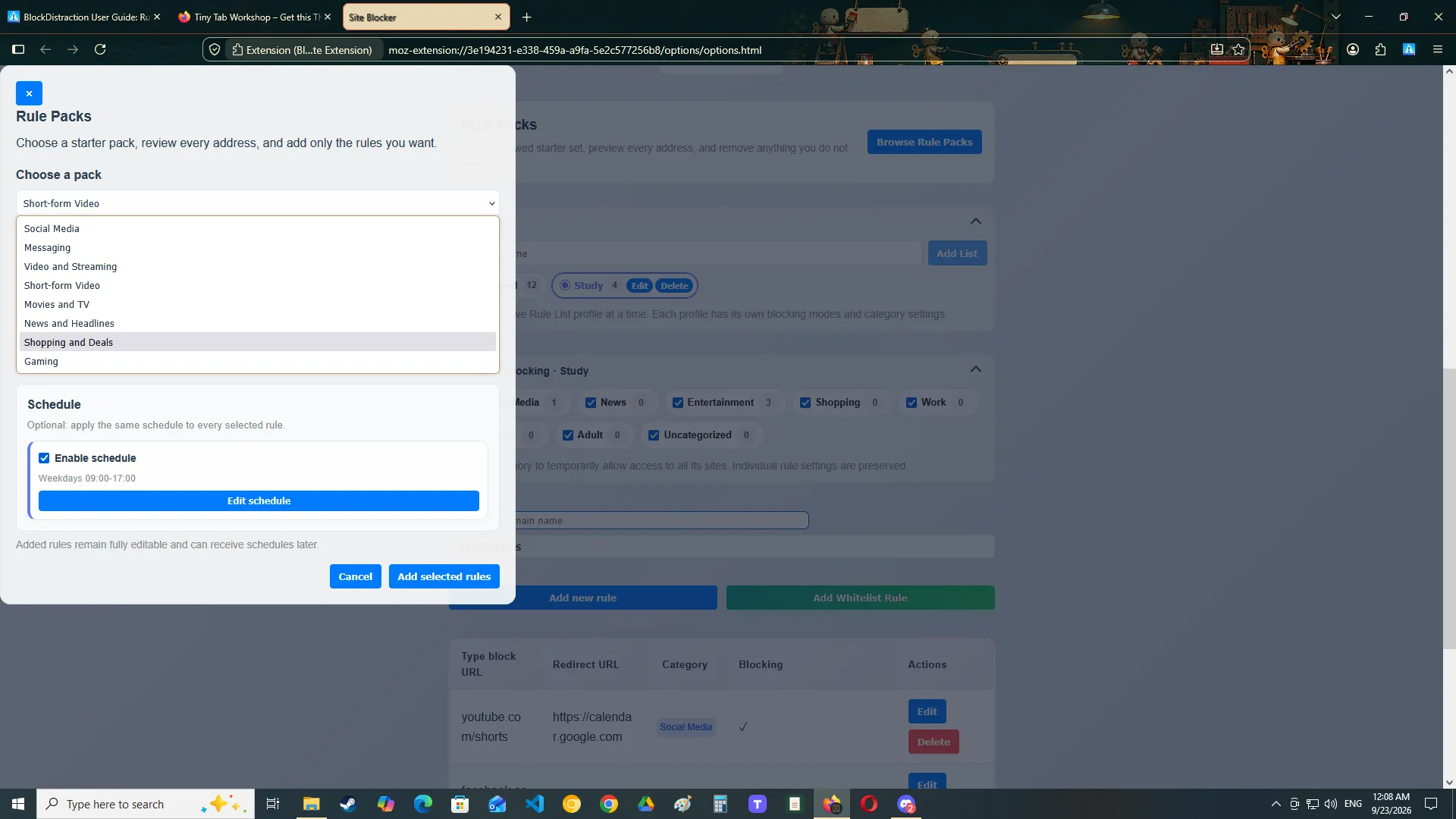
Adding a Rule Pack
- Open the extension settings.
- Select Browse Rule Packs.
- Choose one of the built-in packs.
- Review the addresses and clear any entries you do not want.
- Optionally apply the same schedule to the selected rules.
- Select Add selected rules.
Added rules remain fully editable. BlockDistraction skips existing duplicates and reports entries that conflict with an existing Whitelist rule instead of silently replacing your configuration.
Rule Packs and profiles
Rules are added to the Rule List profile that is active when you confirm the pack. Switch to the intended profile before opening Rule Packs if you keep separate Work, Study, or Personal setups.
Rule List Profiles
Rule List profiles are a Pro feature for keeping separate blocking setups for different contexts, such as Work, Study, or Personal time.
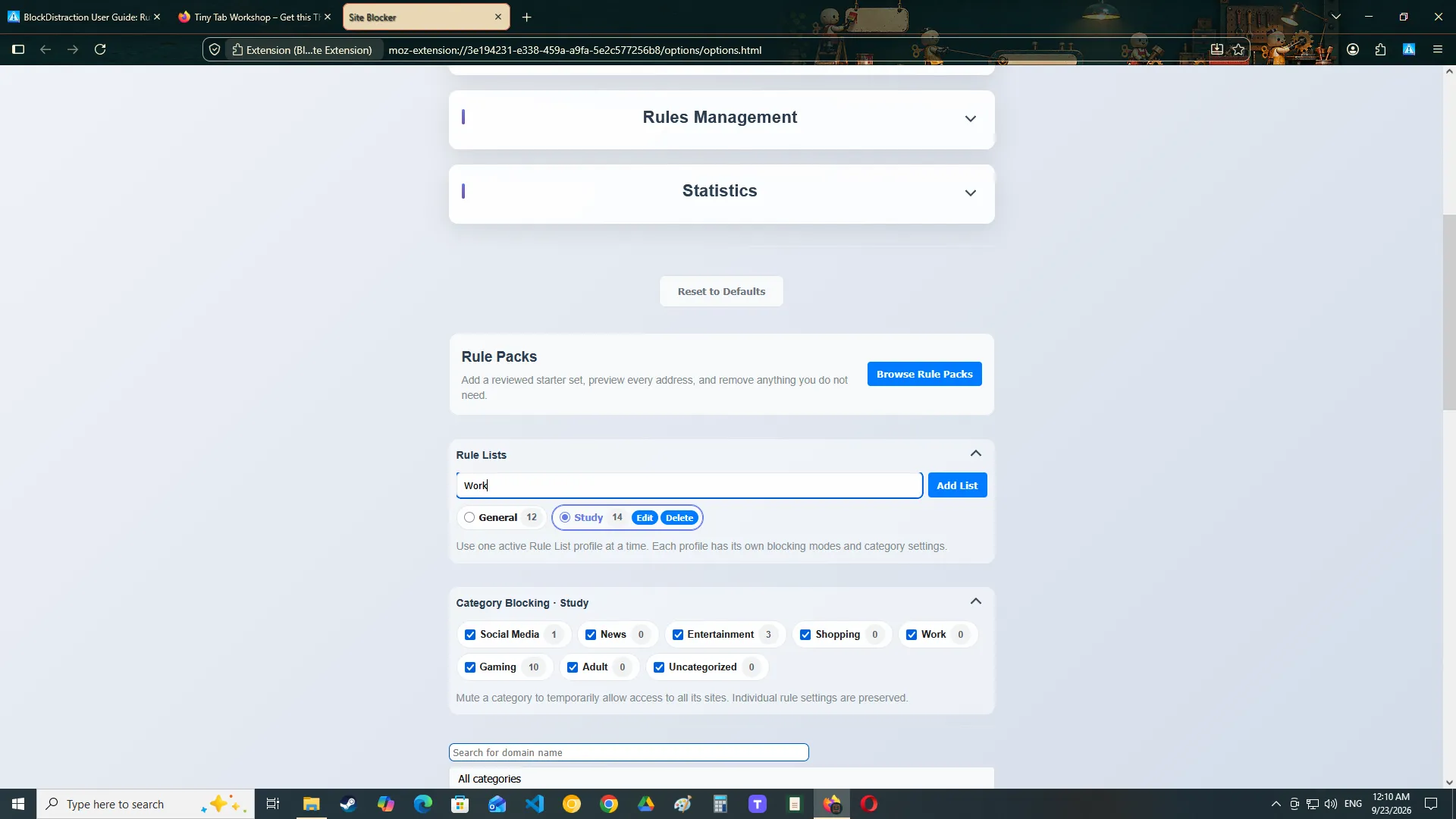
General is the built-in default profile. You can create named profiles and keep up to seven profiles in total, including General.
Only one profile is active
During normal blocking, exactly one profile is active. Switching the profile changes which rules, category states, schedules, and Daily Limits are currently in effect.
The rules table always represents the selected profile, so new rules are added to that profile and edits apply to its assignment.
Using the same website in different profiles
The same website can have independent behavior in different profiles. For example, a site can be blocked on a schedule in Work and use a Daily Limit in Personal.
Focus Sessions and profiles
Focus Sessions are a global override. When a session is active, its selected Blacklist or Whitelist strategy takes priority over normal profile, category, schedule, and Daily Limit state.
Categories and Search
Categories help organize large rule collections.
For example, you can create categories such as:
Social Media

Video
News
Shopping
Work
Study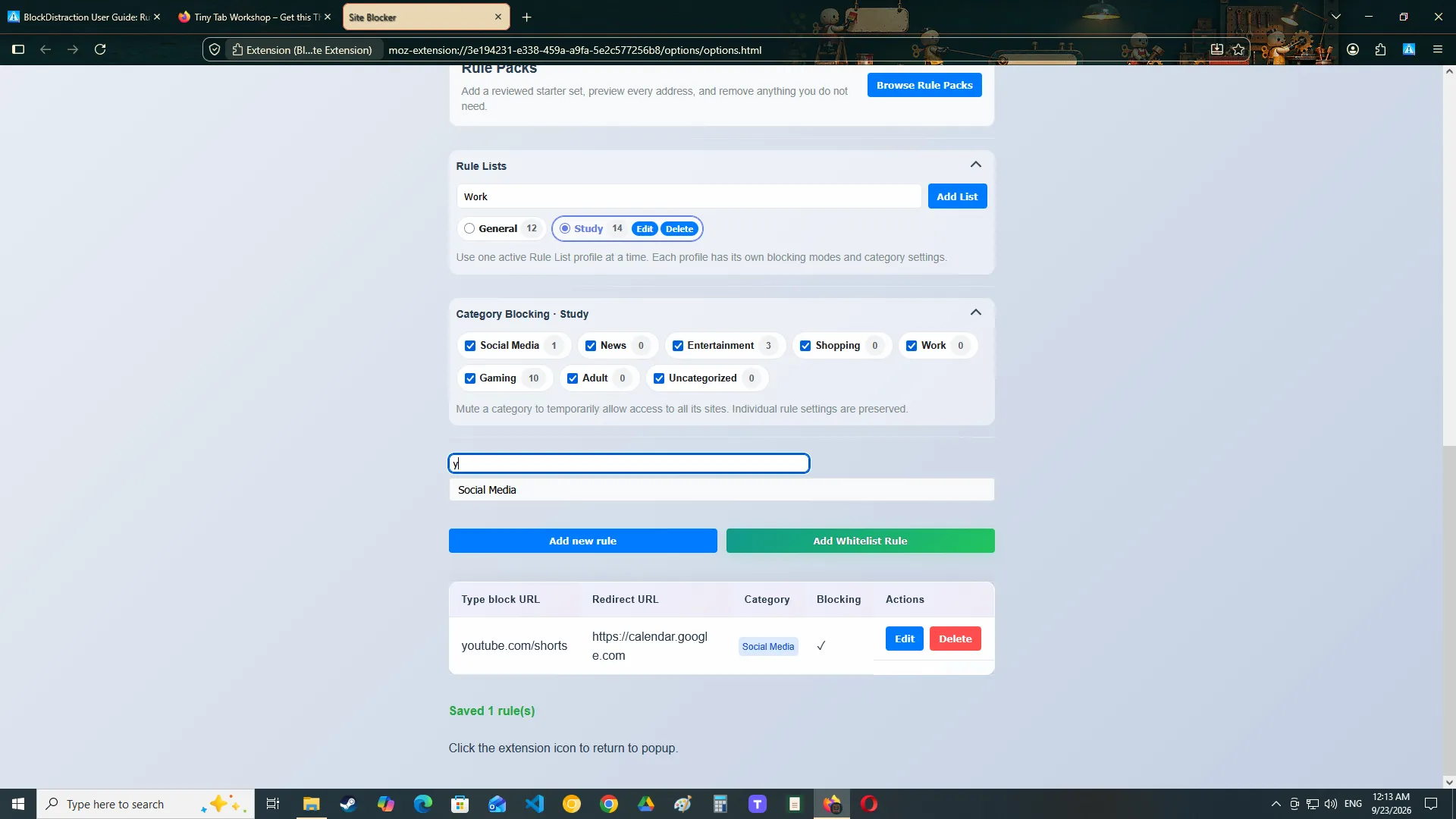
Assigning a category
Choose a category while creating or editing a rule.
Rules without a selected category are placed in the default uncategorized group.
Filtering rules
Use category filters to display only related rules.
With Rule List profiles, category state and category counts apply to the active profile.
This is especially useful when you maintain separate rules for:
- work;
- study;
- different projects;
- different browsing routines.
Searching
Use the search field to find a rule by its website address, redirect address, category, or other displayed information.
Blacklist and Whitelist Rules
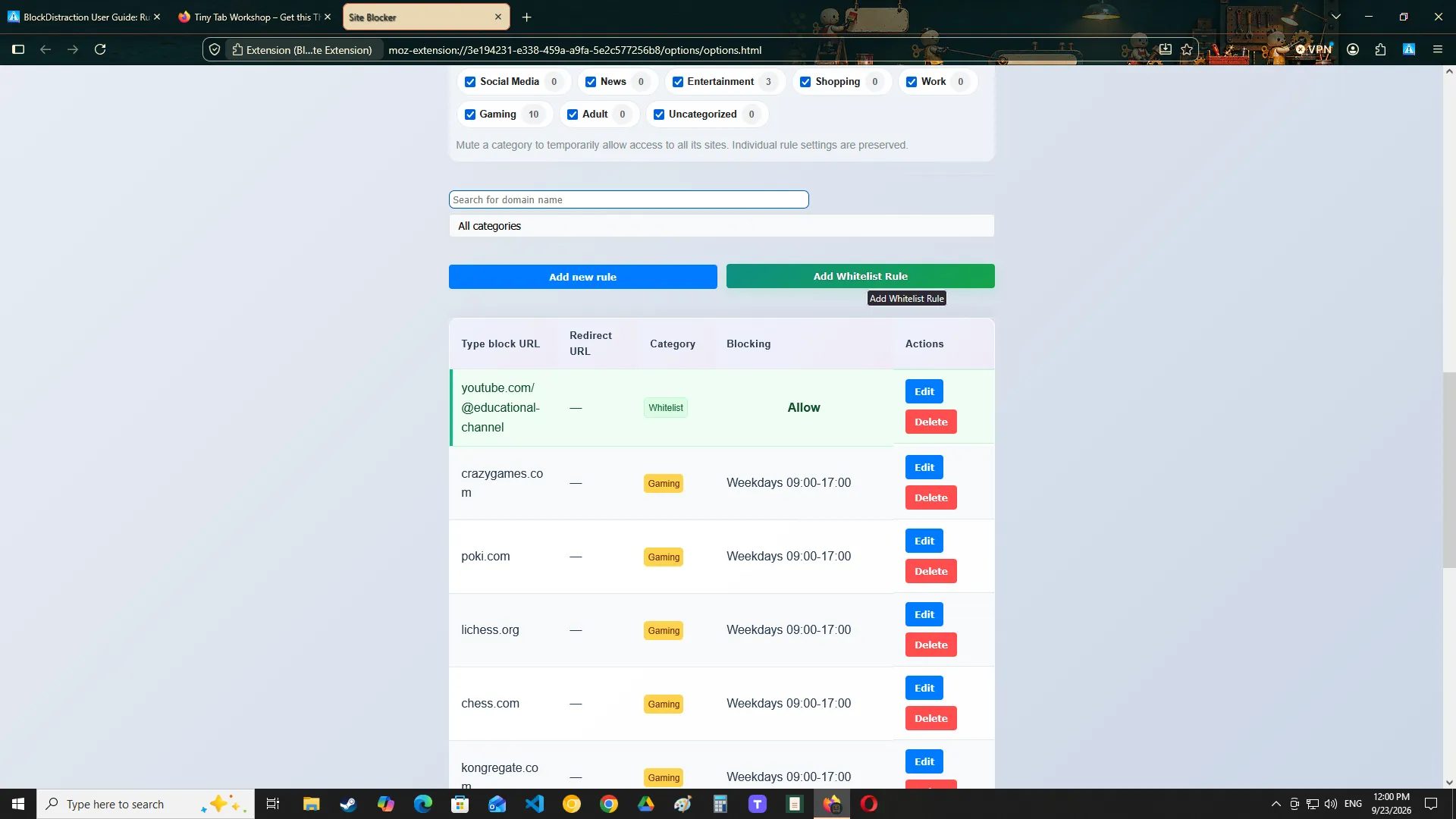
BlockDistraction Pro supports both Blacklist and Whitelist rules at the same time, provided that their website targets do not overlap.
Whitelist rules are used by the Allow Whitelist Only Focus Session strategy. They do not override Blacklist rules or create narrower exceptions inside a broadly blocked website.
Blacklist
Blacklist rules identify websites or addresses that should be blocked.
Block:

reddit.com
Whitelist
Whitelist rules identify websites that may remain available when a Pro Focus Session uses Allow Whitelist Only.
For example, a work session might allow documentation and project tools while temporarily blocking websites that are not on the Whitelist.
Blacklist examples:

reddit.com
news.example

Whitelist examples for an Allow Whitelist Only session:

developer.mozilla.org
github.com
Conflicts and overlapping websites
Do not use Blacklist and Whitelist as a broad rule plus a narrow exception for the same website. BlockDistraction currently treats such combinations as conflicts instead of applying one rule over the other.
For example, if a specific YouTube channel is on the Whitelist, a
Blacklist rule for YouTube, including a YouTube path such as
youtube.com/shorts, is rejected as conflicting. Choose
which behavior you need for YouTube rather than
expecting the channel Whitelist rule to override a broader block.
The same validation applies when importing rules or adding a Rule Pack. Existing rules are kept, and overlapping additions are reported as conflicts and left unchanged.
Scheduled Blocking
Schedule is a Pro assignment mode that activates a rule only during selected days and times in the active profile.
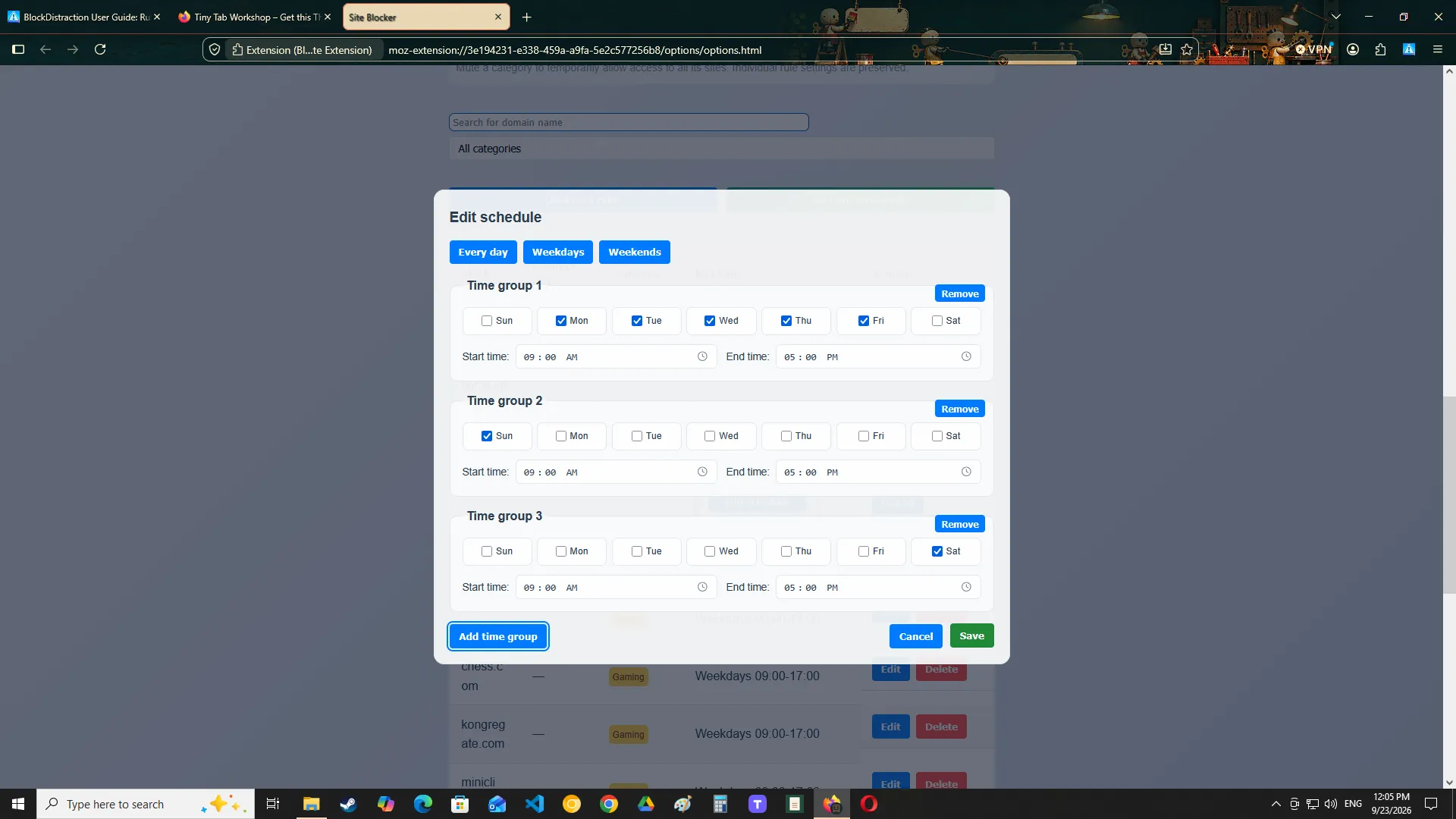
Creating a schedule
- Create or edit a rule.
- Select Schedule as its assignment mode.
- Select the active days.
- Set the start and end times.
- Save the rule.
Monday–Friday

09:00–17:00
The website will be blocked during the selected hours and available outside the schedule.
Recurring schedules
Schedules repeat automatically every week.
You do not need to recreate them each day.
Schedule information in the popup
Rules with schedules display their active schedule in the extension interface, allowing you to check when blocking will apply.
Schedule and Daily limit are alternative assignment modes. A single rule assignment cannot use both at the same time.
Daily Limits
Daily limit is a Pro assignment mode that gives a matching website a daily usage budget instead of blocking it immediately.
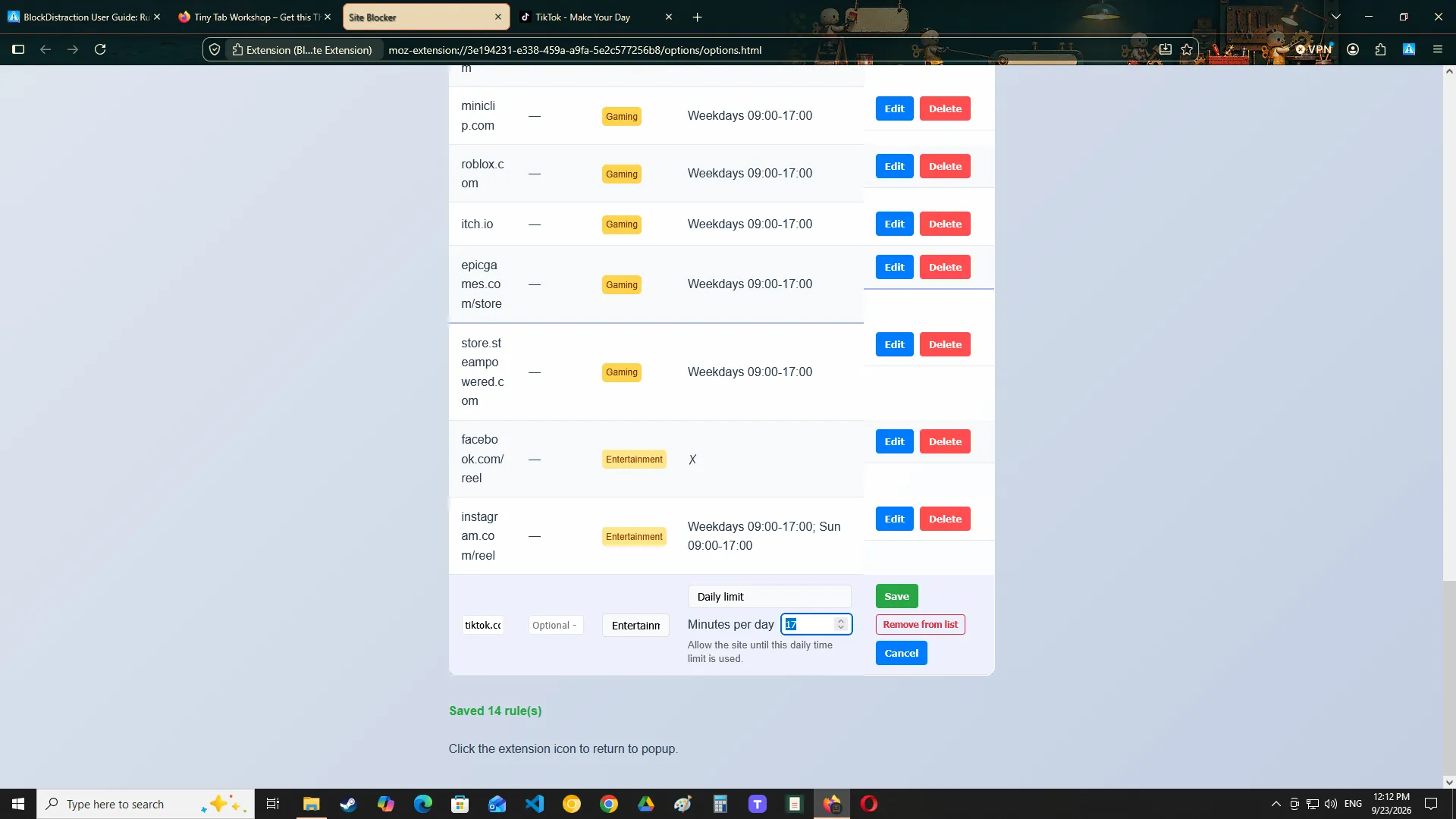
Creating a Daily Limit
- Create or edit a rule in the intended Rule List profile.
- Select Daily limit as its assignment mode.
- Set the daily time budget.
- Save the rule.
The matching website remains available until the configured budget is exhausted. Blocking then begins and continues until the next local calendar day.
What counts toward the limit?
BlockDistraction counts matching use while the page is visible in the foreground. Background tabs and long browser sleep periods are not charged when continuous foreground use cannot be confirmed.
Limits are profile-specific and device-local
The same website can have a different budget in another profile. Usage progress is stored locally on the current device and is not included in exported rule backups.
Password Protection
Password Protection is a Pro feature for users who want to prevent impulsive changes to their blocking setup.
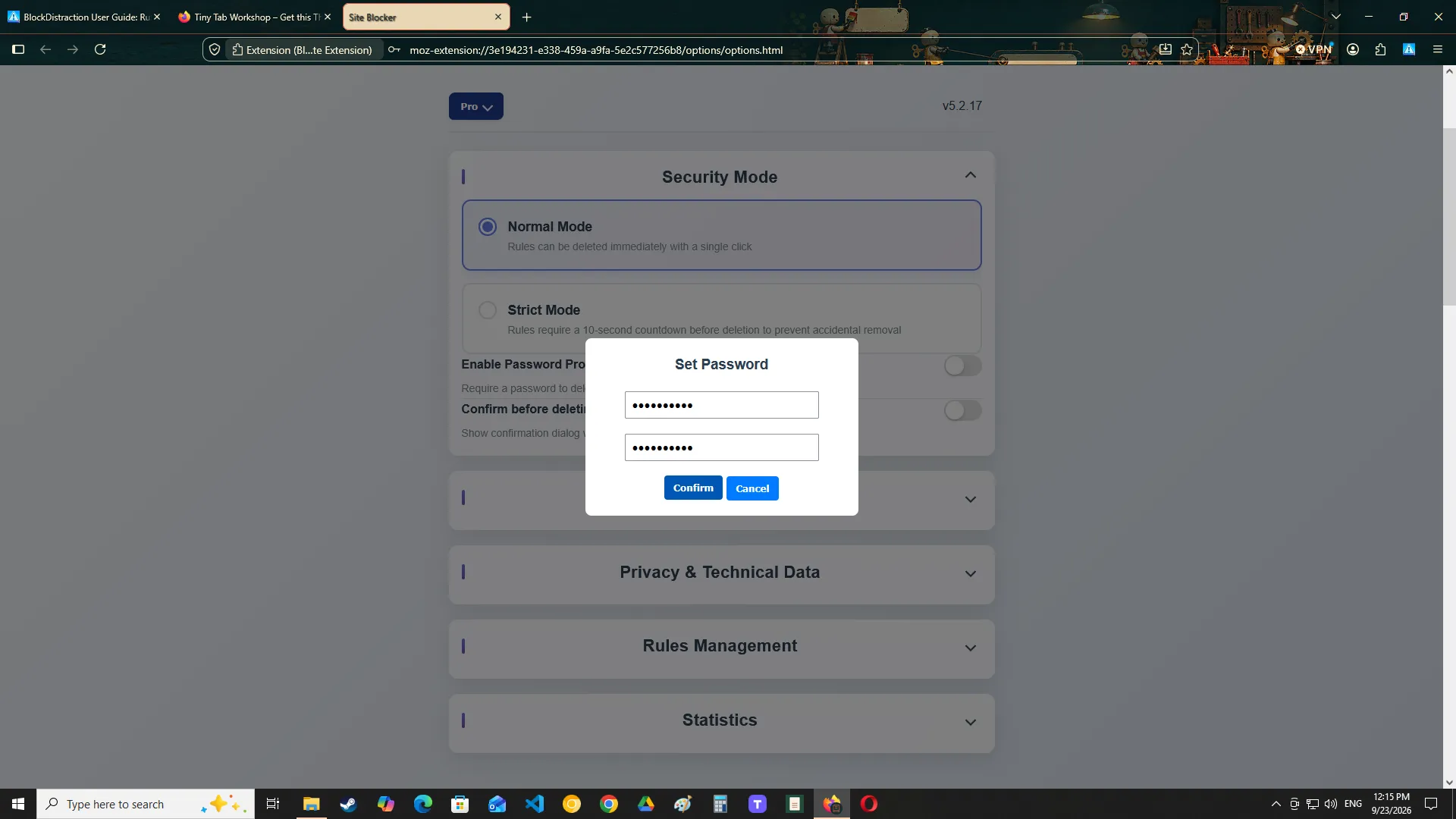
Password Protection can restrict actions such as:
- deleting rules;
- deleting multiple rules;
- changing protected settings;
- deleting statistics;
- signing out of Pro mode.
Using a trusted password holder
For stronger protection, another person can create or retain the password.
This can be useful for:
- study supervision;
- parental controls;
- accountability arrangements;
- personal commitment systems.
Store the password safely. A forgotten password may prevent access to protected actions.
Focus Sessions
A Focus Session activates your focus environment for a selected period.
It is useful when you want to begin focused work immediately instead of waiting for recurring schedules.
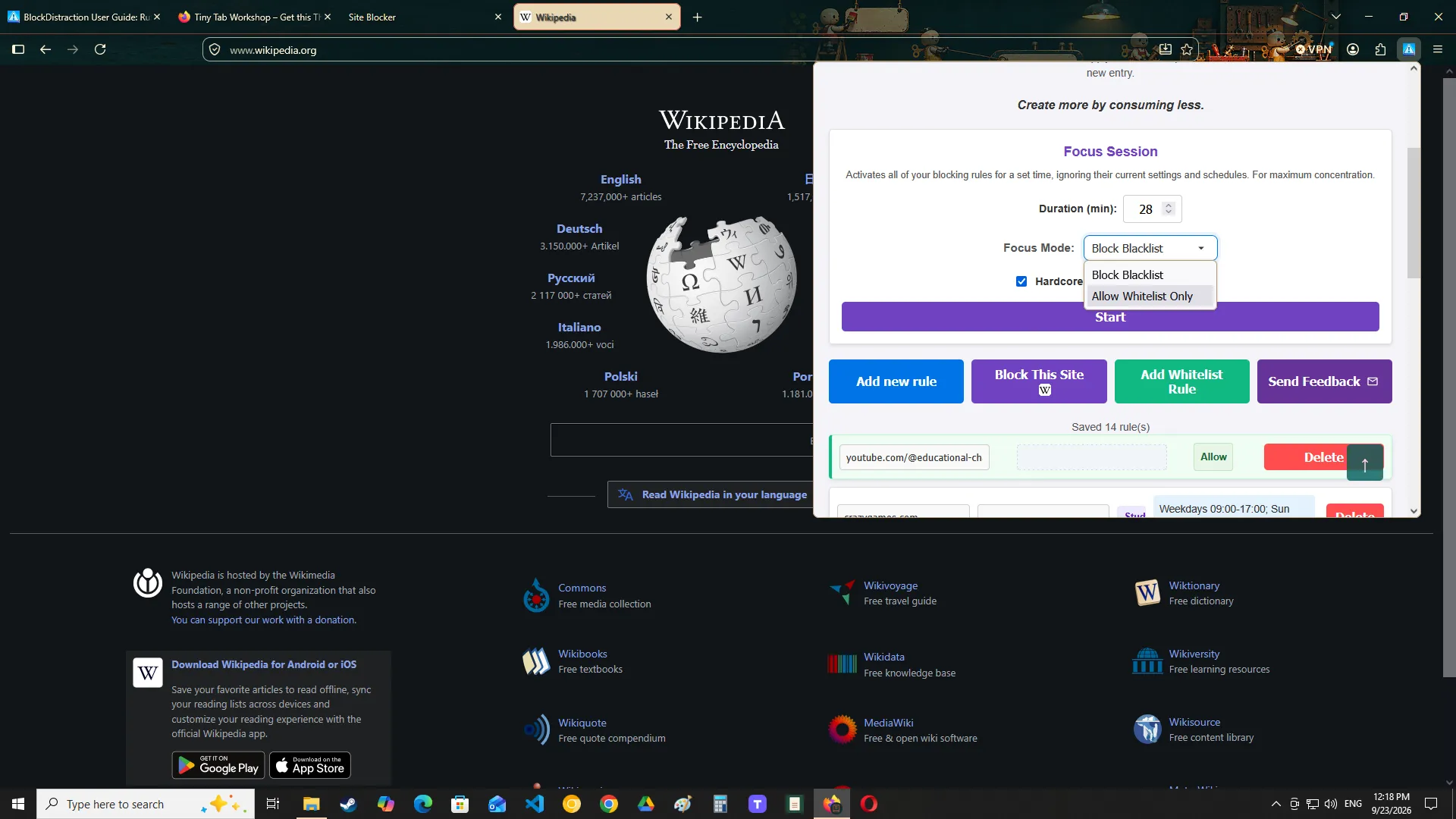
Starting a Focus Session
- Open the extension popup.
- Locate the Focus Session controls.
- Select the session duration.
- Configure the optional sound setting.
- Start the session.
When a Focus Session starts, BlockDistraction closes open tabs that match the applicable blocking rules.
During a session
The extension displays the remaining session time and continues applying the relevant rules.
Session completion
When the timer ends:
- the temporary Focus Session state ends;
- normal rule behavior continues;
- the extension may play a completion sound if sound is enabled.
Hardcore Mode
Hardcore Mode is the strongest Focus Session option available in Pro.
It is intended for periods when you do not want to give yourself an easy way to stop the session.
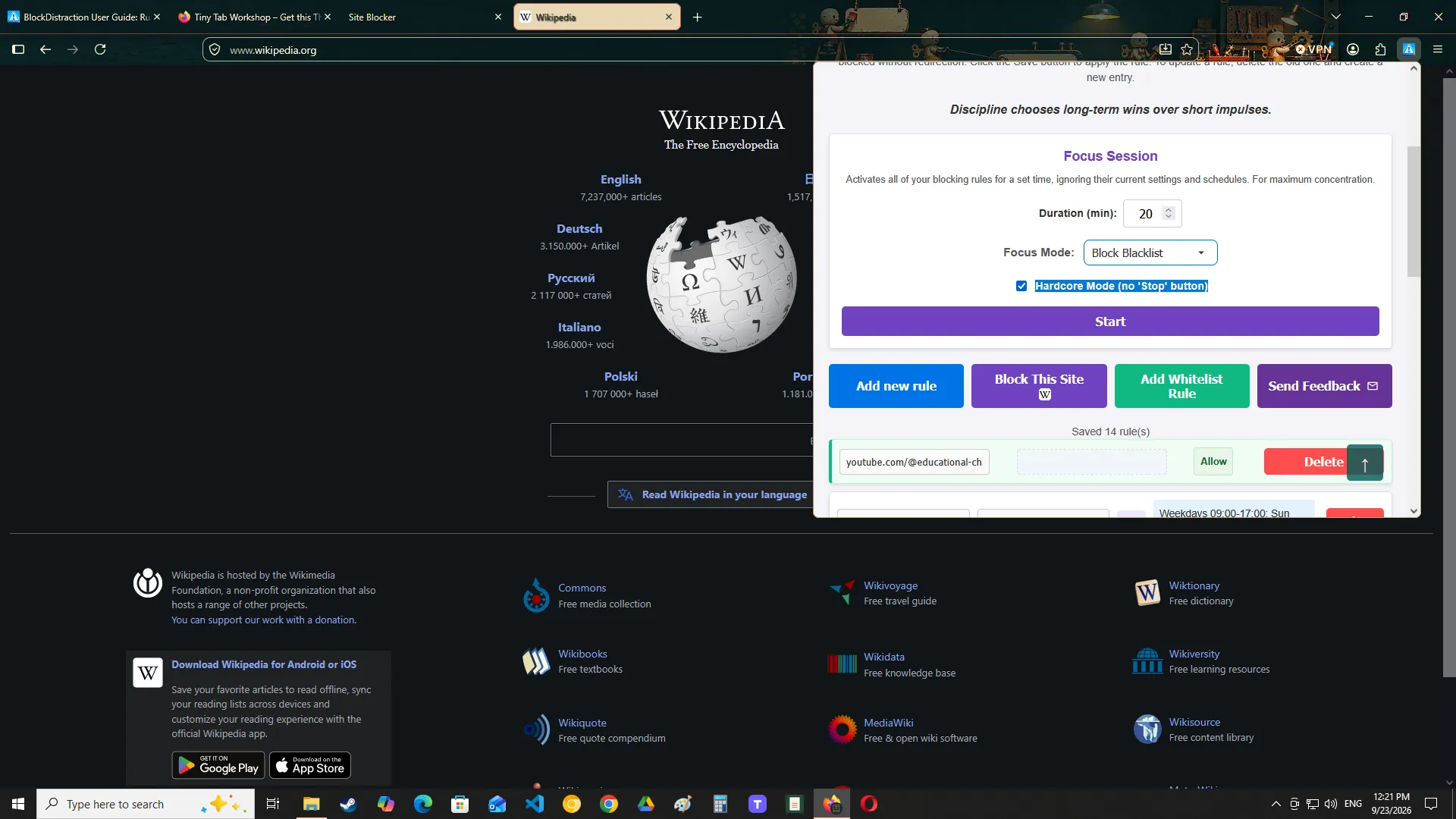
Before starting
Always check:
- the selected duration;
- your blocking rules;
- any websites required for work;
- whether urgent access may be needed.
During Hardcore Mode
The session cannot be stopped through the normal extension interface.
Restarting the browser does not cancel the remaining session time.
BlockDistraction restores the session and calculates the remaining time after the browser starts again.
When to use it
Hardcore Mode can be useful for:
- deep work;
- studying;
- writing;
- coding;
- timed practice sessions;
- tasks where short-term impulses frequently interrupt progress.
Do not enable Hardcore Mode until you understand exactly which websites your rules will block.
Statistics
Statistics is a Pro feature that helps you understand how often blocking and redirect rules are triggered and how many Focus Sessions you complete.
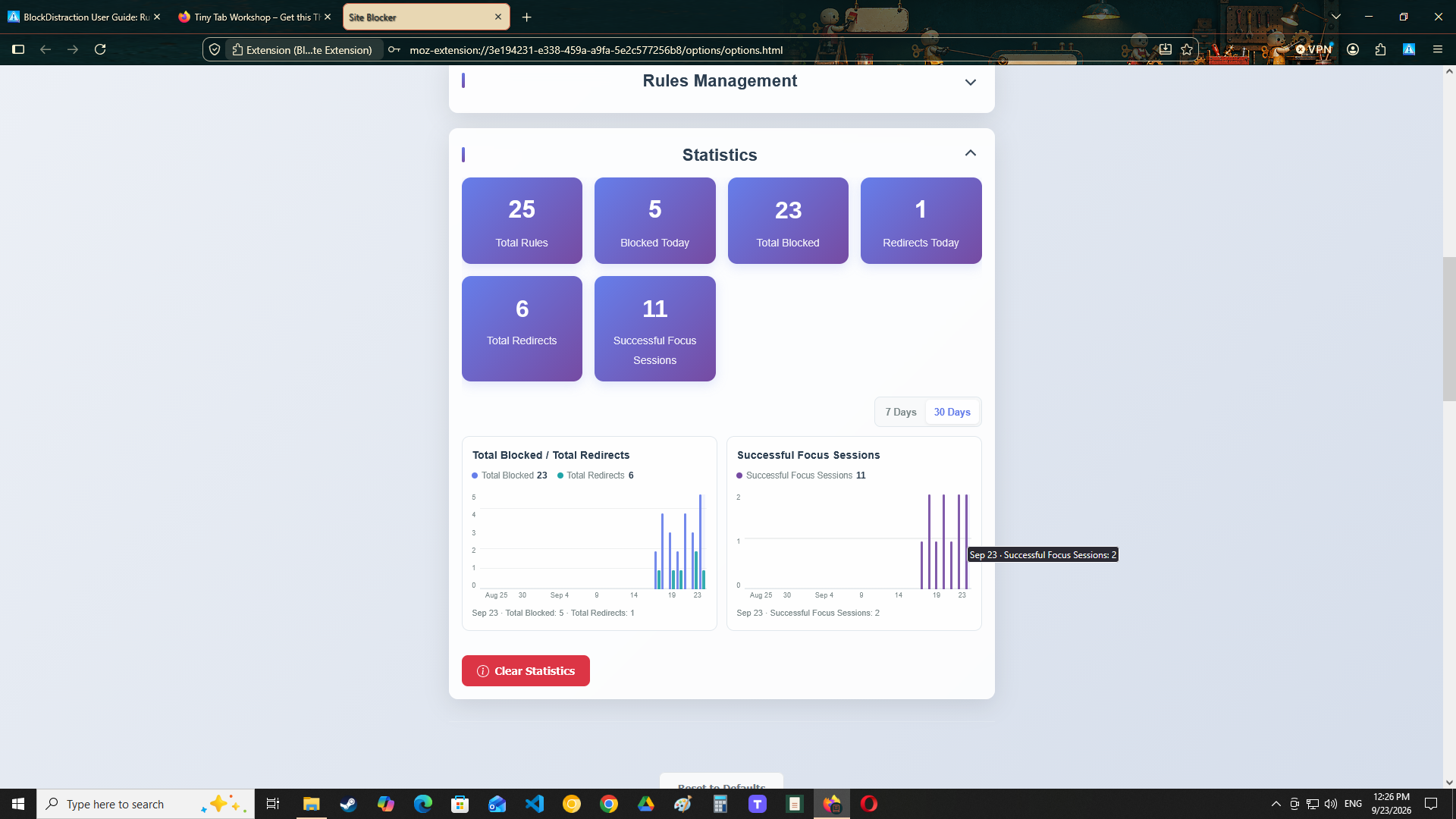
Statistics include aggregate counts for:
- blocked attempts;
- redirects;
- completed Focus Sessions.
Daily history is retained for the latest 30 local calendar days and displayed in responsive 7-day and 30-day charts.
Statistics remain local
Statistics stay in extension storage on the current device. Daily history contains aggregate counts only and does not contain URLs, domains, browsing history, rule addresses, redirect destinations, account identifiers, or telemetry identifiers.
Deleting statistics
You can clear all current totals and retained daily history from the settings page.
If Password Protection is enabled, deleting statistics may require the password.
Importing and Exporting Rules
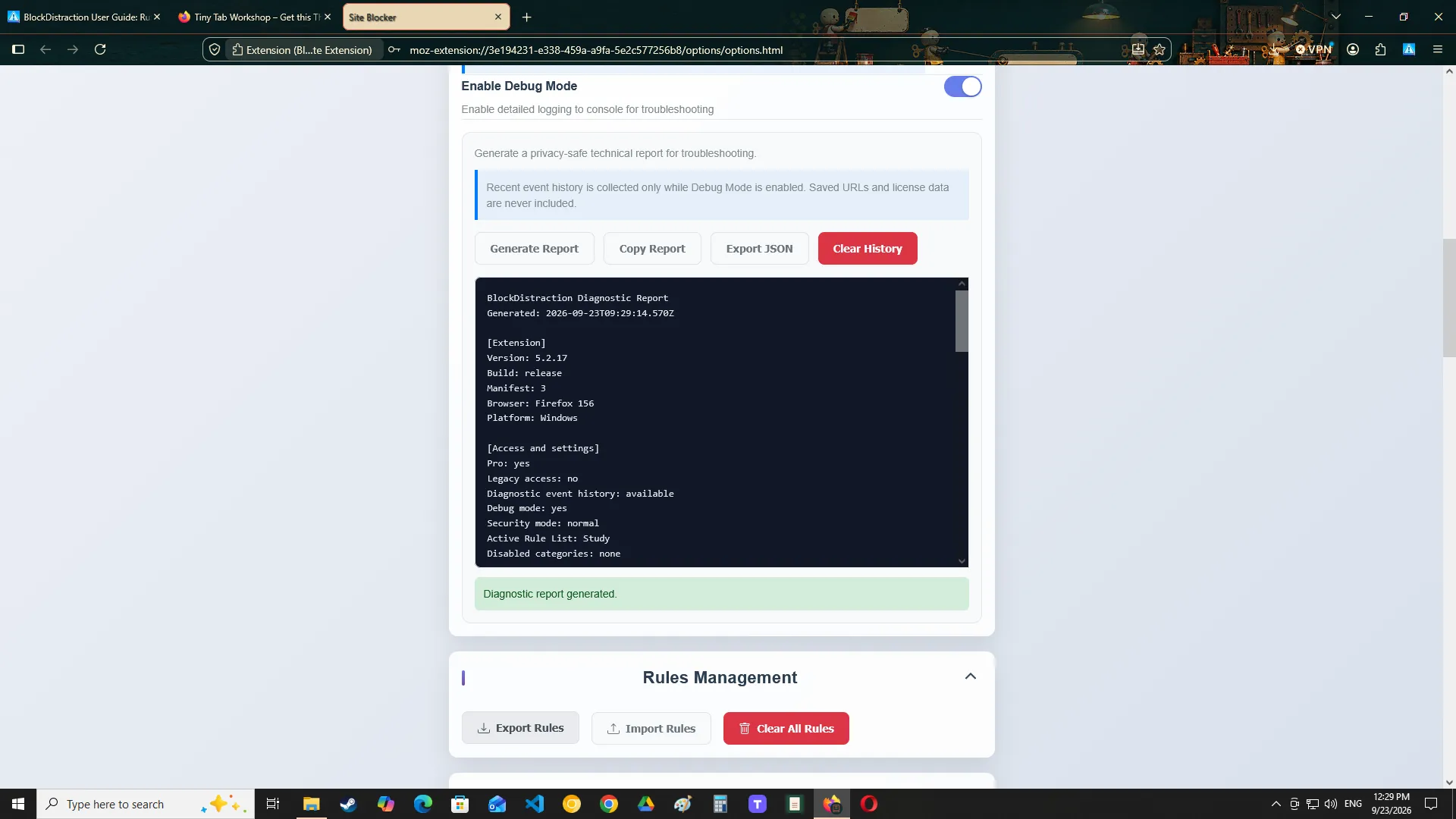
Import and export tools allow you to create a backup or transfer your rule configuration.
Exporting rules
Use Export to save your current rule data.
Keep the exported file somewhere safe.
Importing rules
Use Import to restore rules from a previously exported file.
Review imported rules before relying on them, especially when:
- importing an old backup;
- moving between browser types;
- importing a configuration created on another device.
What a backup may contain
Exported data may include:
- blocked addresses;
- redirect addresses;
- categories;
- Rule List profiles and rule assignments;
- schedules;
- Daily Limit configuration;
- supported rule settings.
Passwords, license information, temporary Focus Session state, current Daily Limit usage, and local statistics history are not part of a normal rule backup.
Activating BlockDistraction Pro
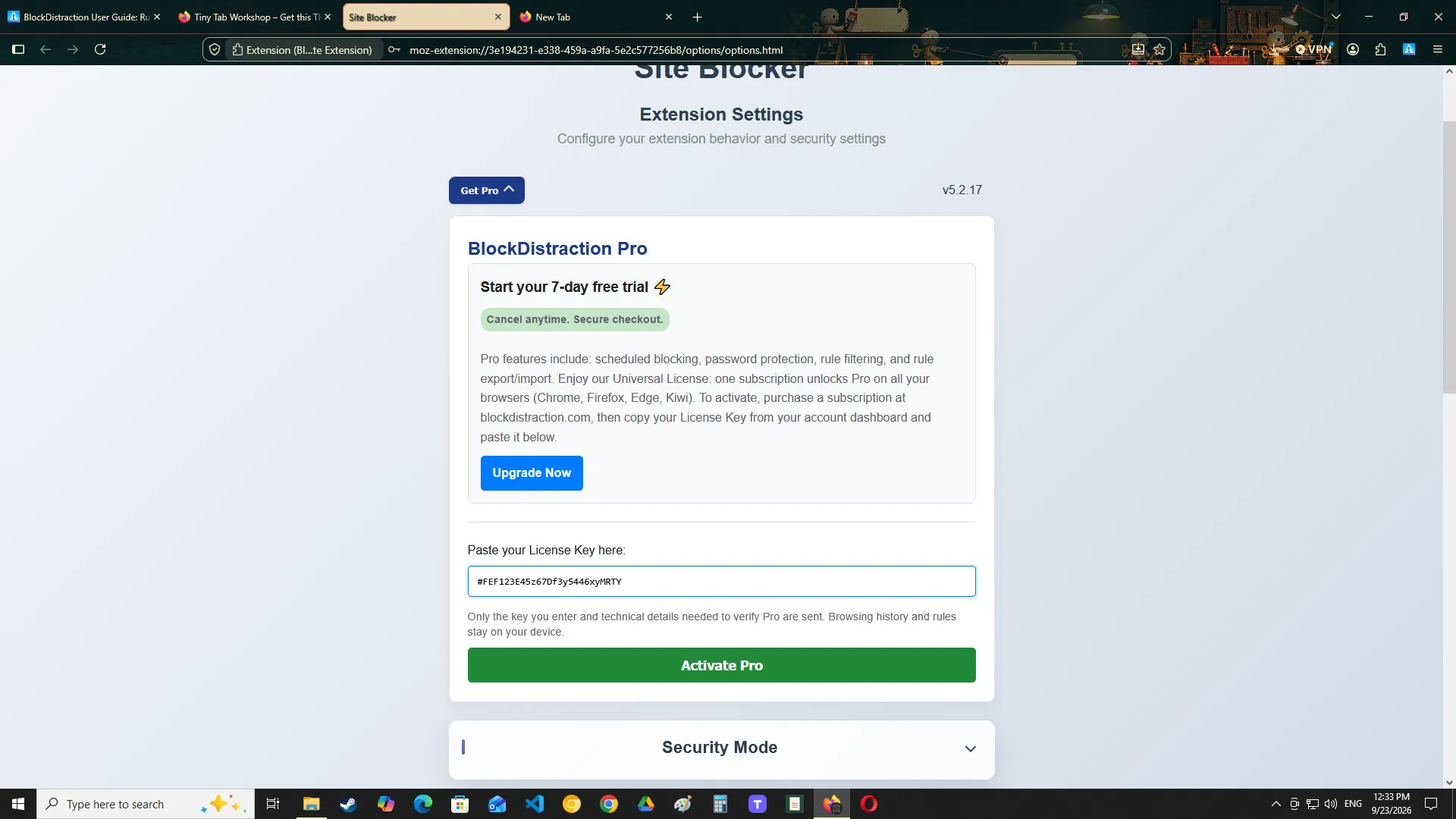
BlockDistraction Pro is activated with a license key.
The extension itself does not require you to sign in to the BlockDistraction website.
Where to find your key
- Sign in to your account on blockdistraction.com.
- Open My Account.
- Copy your Universal License Key.
- Open the extension settings.
- Paste the key into the Pro activation field.
- Activate the license.
Once the key is verified, Pro features become available in that browser installation.
Using Your Universal License
A Universal License can unlock supported Pro features across compatible browsers and devices.
You can use the same license key when installing BlockDistraction in another supported browser.
The key must be entered separately into each extension installation.
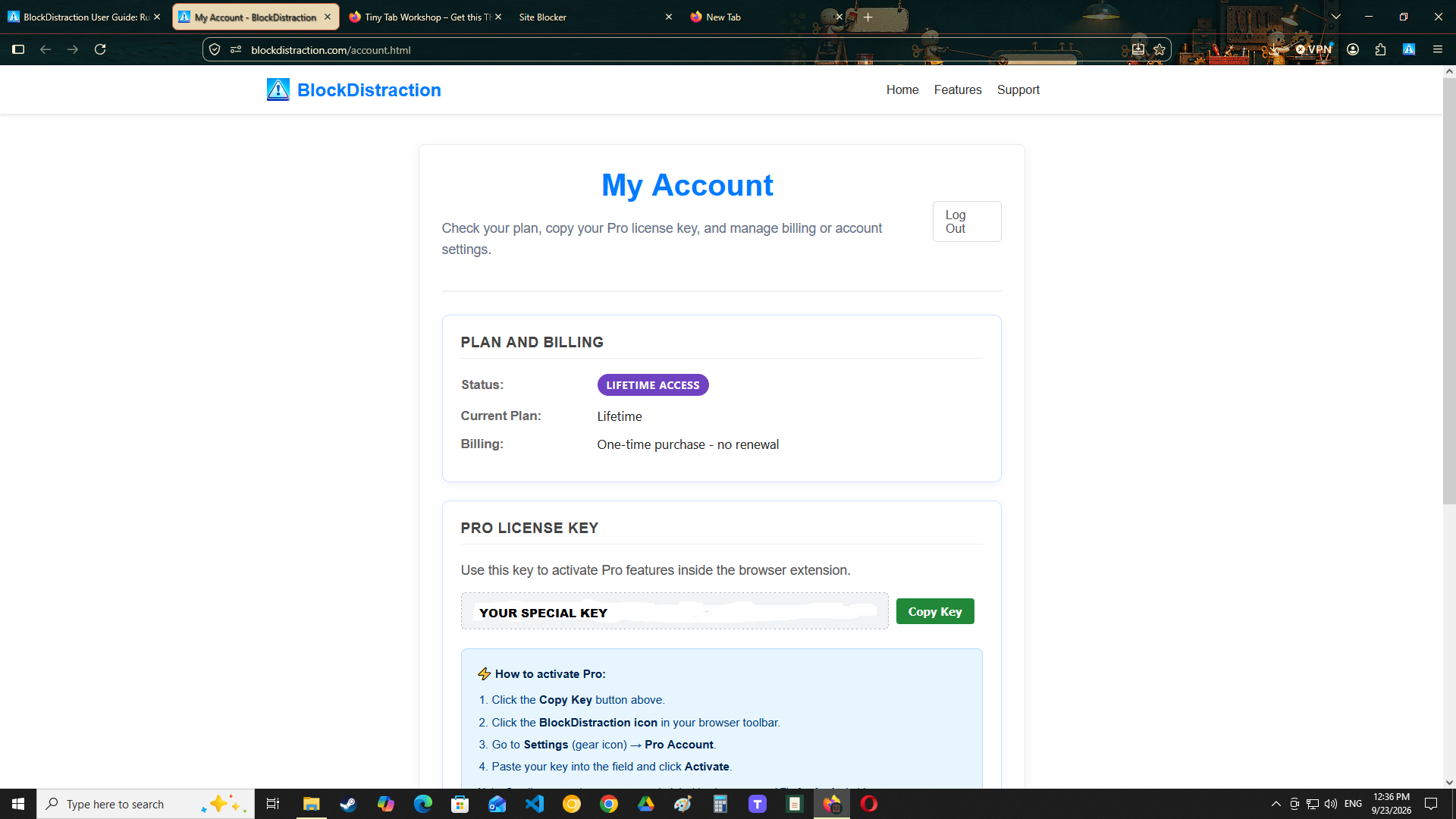
Your website account is used to manage the purchase and retrieve the license key. The extension itself uses the key for activation.
Do not publish or share your license key publicly.
Replacing an exposed license key
If your key is accidentally published or otherwise compromised, open the Danger Zone on the My Account page and use Replace License Key.
Replacing the key immediately stops the previous key from working on all devices. Copy the new key and enter it again in every BlockDistraction installation where you want to keep Pro active.
This action is intended for compromised keys, not routine device management.
Privacy and Local Processing
BlockDistraction is designed to process blocking rules directly in your browser.
Your rules and browser-level blocking decisions do not require continuous communication with the BlockDistraction website.
The website account and licensing system are separate from normal rule processing.
What the website account is for
Your account is used for:
- purchasing Pro;
- retrieving your license key;
- managing a recurring subscription, when applicable;
- accessing purchase-related information.
You can use the Free version without creating an account.
What the extension stores
Depending on the browser and extension version, BlockDistraction may store:
- blocking rules;
- redirects;
- categories;
- schedules;
- Rule List profiles;
- Daily Limit configuration and local usage;
- preferences;
- local aggregate statistics history;
- Pro activation information.
For full details, review the BlockDistraction Privacy Policy.
Troubleshooting
A website is not blocked
- Confirm that the rule was saved.
- Verify the website address.
- Confirm that you are viewing the Rule List profile that contains the rule.
- Check the rule's Always, Schedule, or Daily limit mode.
- For Schedule mode, confirm that the current day and time fall inside an active period.
- Confirm that the rule's category is enabled in the active profile.
- Check for a conflicting Whitelist rule.
- Confirm that the extension has the required website permissions.
- Open Debug Mode if available.
- Restart the browser and test again.
A specific path remains visible after an in-page navigation
Services such as YouTube can change the address without performing a
complete page load. If a path-specific rule such as
youtube.com/shorts does not apply after selecting a link
inside the site, reload the tab and test the current address again.
A link opens in an external mobile app
BlockDistraction controls pages opened inside the browser. It cannot block content after Firefox or another browser hands a link to a separate Android application. Keep the link in the browser when you want the browser rule to apply.
The wrong pages are blocked
The rule may be too broad.
Edit it and include a more specific path.
youtube.comcan be replaced with:
youtube.com/shortsA Daily Limit does not appear to increase
Confirm that:
- Daily limit is the selected assignment mode;
- the intended Rule List profile is active;
- the matching page is visible in the foreground;
- you are checking usage on the same device where browsing occurred.
Background tabs, browser sleep periods, and use on another device are not charged to the current device's Daily Limit progress.
A redirect does not work
Confirm that:
- the redirect address is valid;
- it includes the correct destination;
- the destination is not blocked by another rule;
- the browser allows the target page to open.
Pro features are unavailable
Check that:
- the license key was entered correctly;
- the license is active;
- the browser has internet access during verification;
- the installed extension is up to date.
Rules disappeared or did not transfer
BlockDistraction configurations are associated with the extension installation and the browser's supported storage system.
If Pro is active, switch between Rule List profiles to make sure the rules are not assigned to another profile.
Use Import and Export when you need a reliable manual backup.
Still need help?
Visit the BlockDistraction Support page or contact [email protected] .
When reporting a problem, include:
- your browser name;
- browser version;
- extension version;
- device type;
- steps that reproduce the issue;
- relevant Debug Mode output, if available.