 BlockDistraction
How to Block Websites on Firefox for Android

Firefox for Android supports browser extensions, which means you can use a website blocker directly inside your mobile browser.
BlockDistraction lets you block distracting websites, redirect unwanted pages and start Focus Sessions without installing a separate Android app or switching to another browser. The free version works without an account and includes up to 10 website blocking rules.
This guide explains how to install BlockDistraction on Firefox for Android, open its popup and settings page, create your first blocking rule and use Rule List profiles, schedules, Daily Limits and focus tools.
Looking for a shorter product overview? Visit the Firefox Android Website Blocker page, or continue here for the complete step-by-step walkthrough.
Install BlockDistraction on Firefox for Android
Open the official BlockDistraction page on Firefox Add-ons using Firefox for Android.
Tap Add to Firefox.
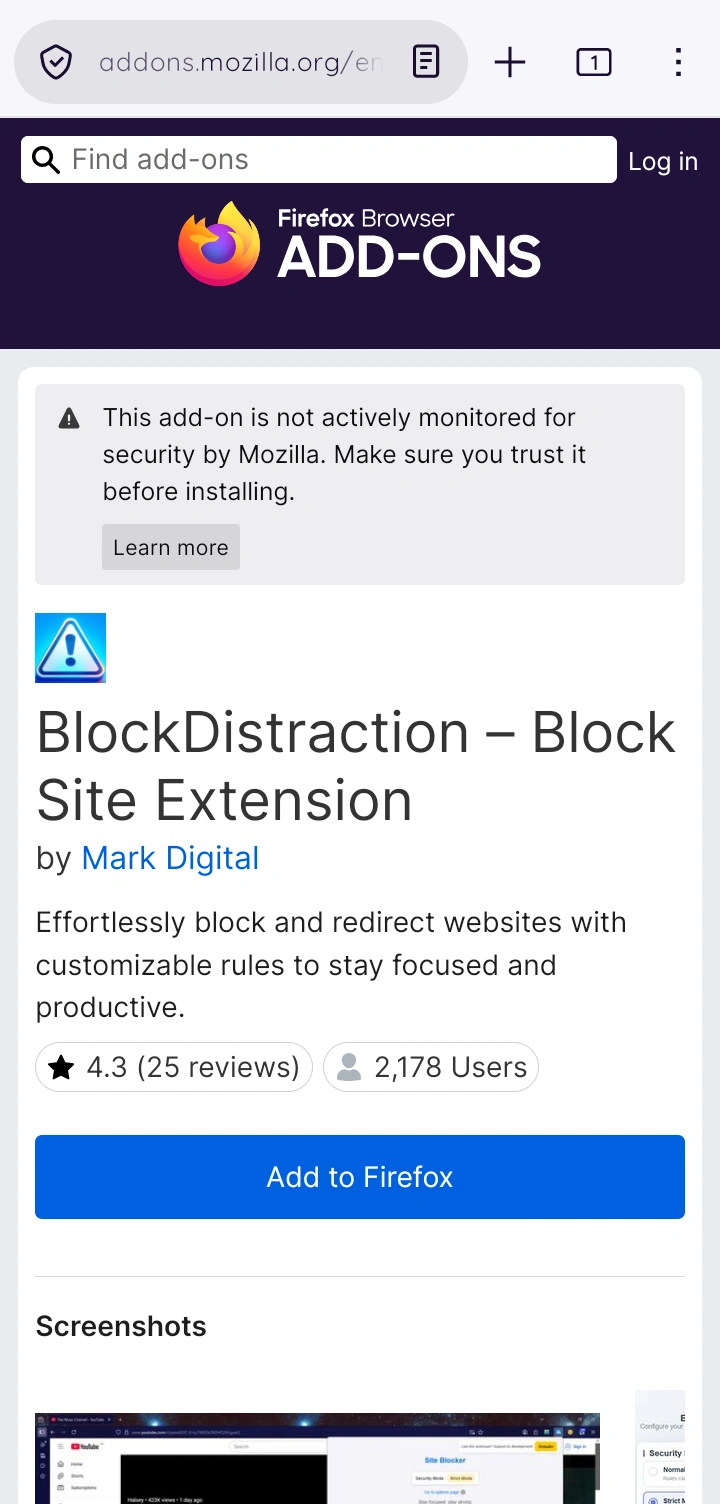
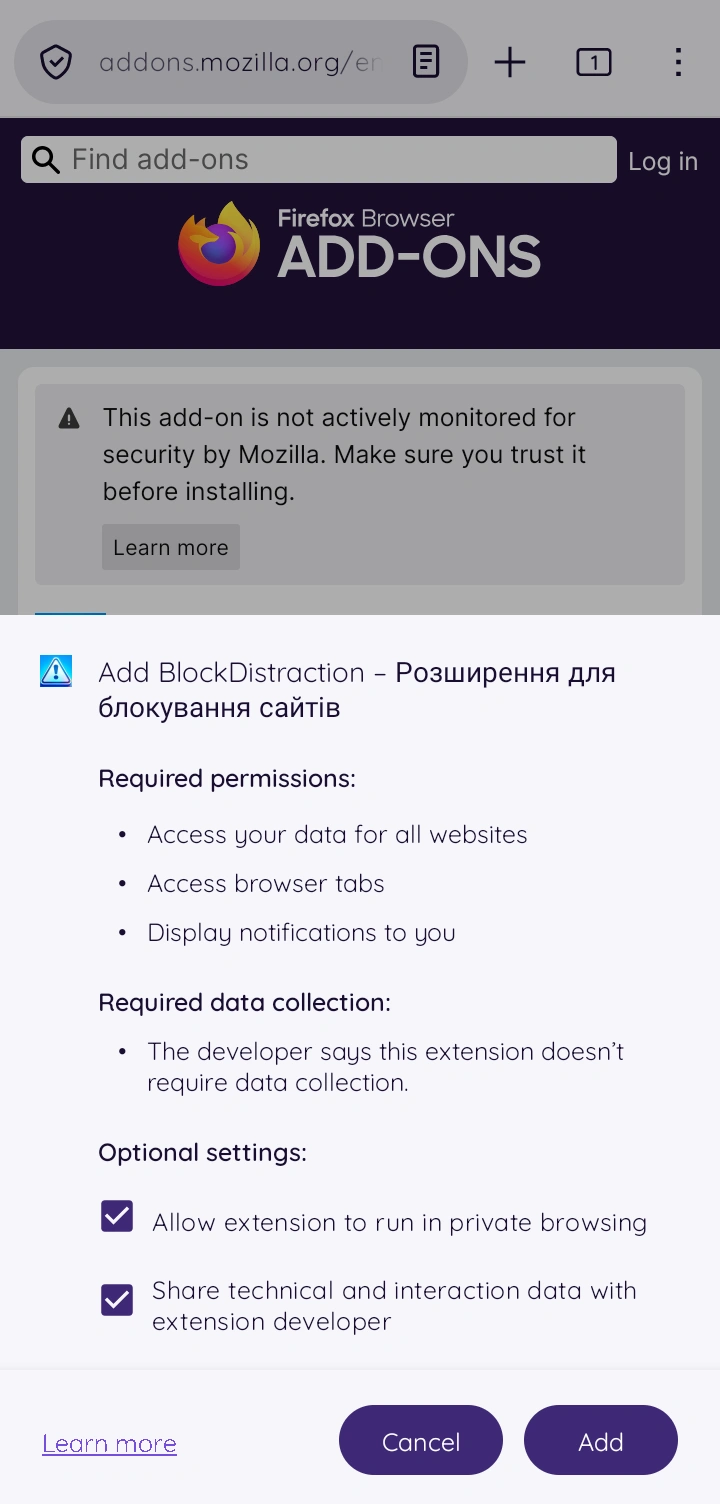
Firefox will display a popup explaining which browser permissions the extension needs.
You can also enable Allow extension to run in private browsing if you want BlockDistraction to work inside private tabs. This option is not required for normal browsing.
Tap Add to continue.
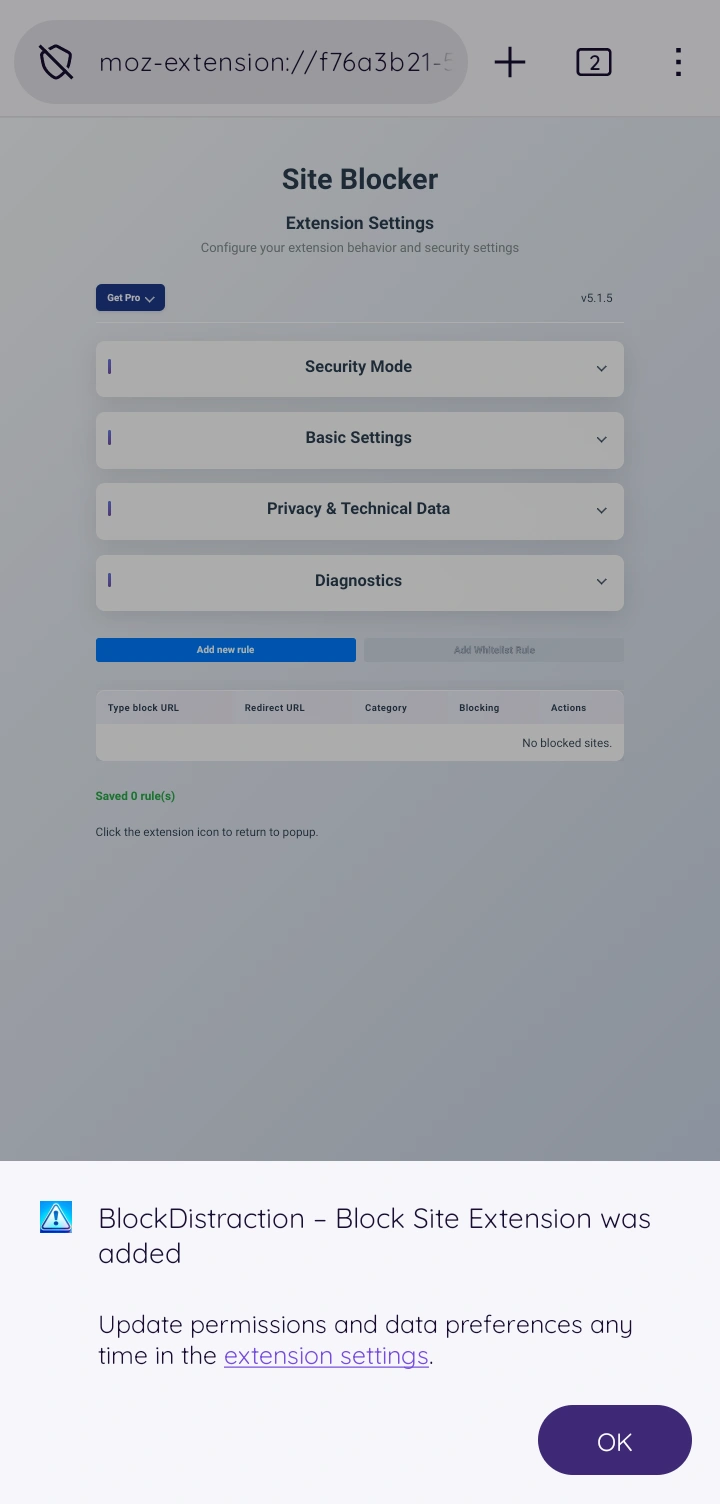
Firefox will then confirm that BlockDistraction has been installed. Tap OK to close the confirmation popup.
Open BlockDistraction After Installation
BlockDistraction should automatically open its full settings page after installation.
If that does not happen, open the Firefox menu, go to Settings and select Extensions.
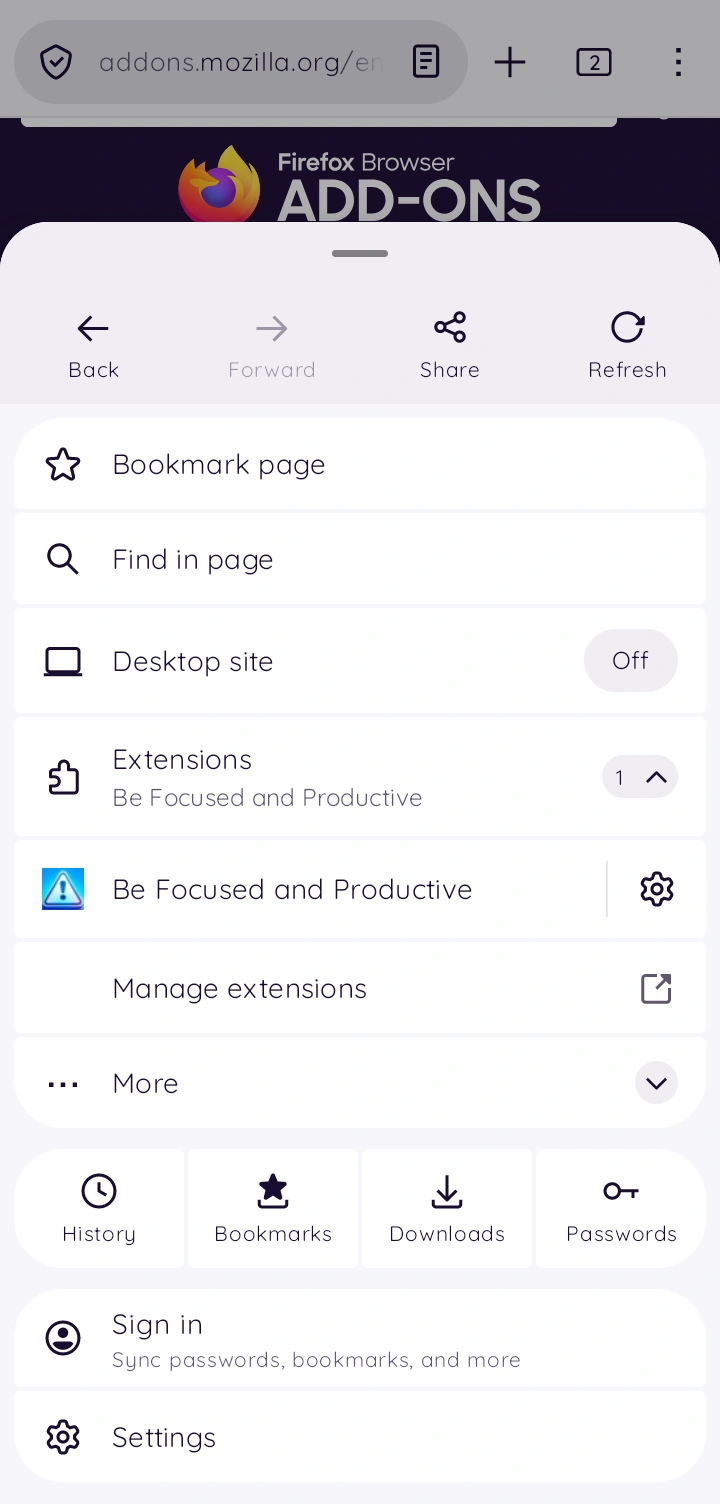
Firefox displays your installed extensions near the top of the list. Tap BlockDistraction to open the extension popup.
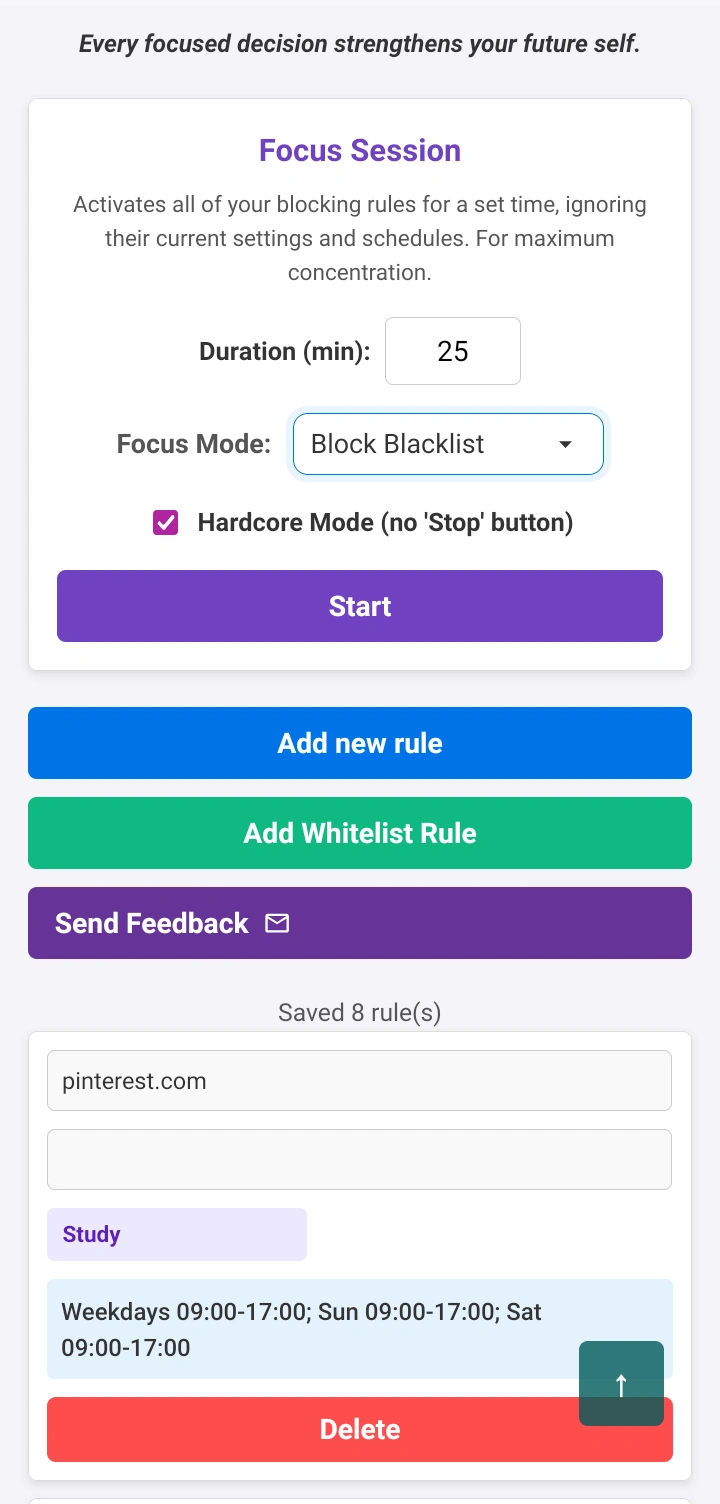
Popup or Settings Page: What Is the Difference?
BlockDistraction has two main interfaces: the extension popup and the full settings page.
The extension popup
The popup is intended for quick actions:
- block the website that was open before the popup;
- add a blocking rule manually;
- add a whitelist rule with Pro;
- start or stop a Focus Session;
- open the full settings page.
The settings page
The settings page provides the complete extension interface:
- create and edit rules;
- switch between Rule List profiles with Pro;
- select rule categories;
- choose Always, Schedule or Daily limit behavior for individual rules with Pro;
- review local 7-day and 30-day blocking statistics with Pro;
- change extension preferences;
- manage Pro activation and license settings.
You can add rules from either interface. The popup is faster for blocking the current website, while the settings page is better for detailed rule management.
Block the Currently Open Website
On desktop, you can open an extension popup directly from the browser toolbar. Firefox for Android requires a few more steps because the popup is accessed through the browser settings.
Before opening the BlockDistraction popup, open the website that you want to block. Then go to Settings > Extensions > BlockDistraction and tap Block This Site.
Important: the Block This Site button uses the tab that was active immediately before the popup was opened.
If you open another page after opening the popup, the button may still refer to the previously selected tab.
To update it:
- Close the BlockDistraction popup.
- Open the website you want to block.
- Open the popup again.
- Tap Block This Site.
You can also tap Add Rule and enter the blocking rule manually.
Add a Website Blocking Rule Manually
Rule creation works almost the same way in the popup and on the settings page.
Tap Add Rule to open the rule form. Depending on the available screen width and Firefox layout, the popup fields may appear in a row or in a column.
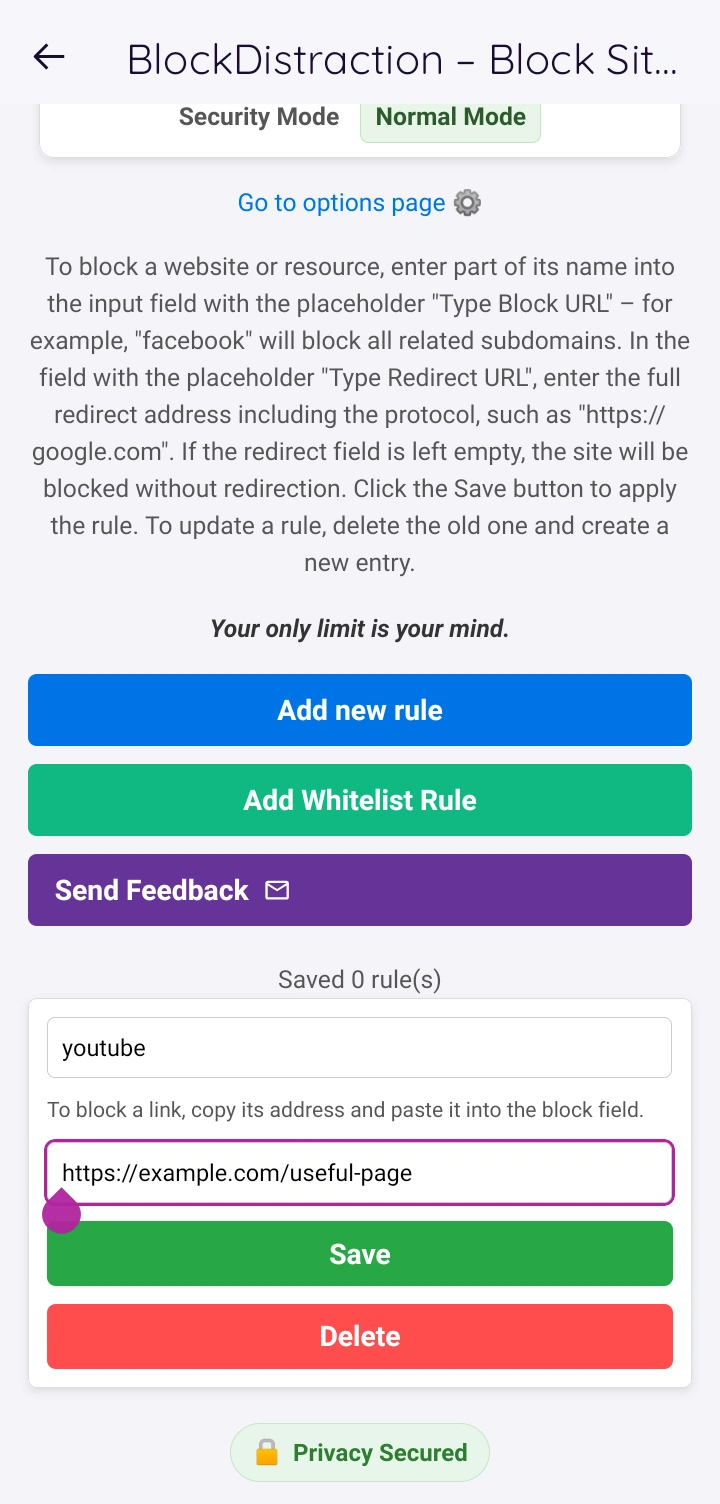
Blocking rule
The first field contains the blocking pattern.
You do not need to enter a complete domain. You can use a recognizable part of the address, and you do not need wildcard characters or regular expressions.
For example:
youtube
A broad rule like this will match typical YouTube addresses, including mobile pages and Shorts URLs. Use a more specific domain or path when you need narrower blocking.
Redirect address
The second field is optional.
Leave it empty when you want BlockDistraction to show its standard blocked-page message.
To redirect the blocked website somewhere else, enter a complete URL including the protocol and full path:
https://example.com/useful-page
A redirect can lead to a task manager, study resource, company dashboard or any page that is more useful than the blocked website.
Category
Rules created from the popup use the Social Media category by default.
On the full settings page, you can select or change the category while creating or editing a rule.
Save the rule
Tap Save after entering the blocking pattern and optional redirect.
When a website matching the new rule is already open, BlockDistraction will normally close the corresponding browser tab automatically.
For example, if a YouTube tab is open while you add a rule containing youtube, that tab will usually close after the rule is saved.
Organize Rules with Profiles, Schedules and Daily Limits
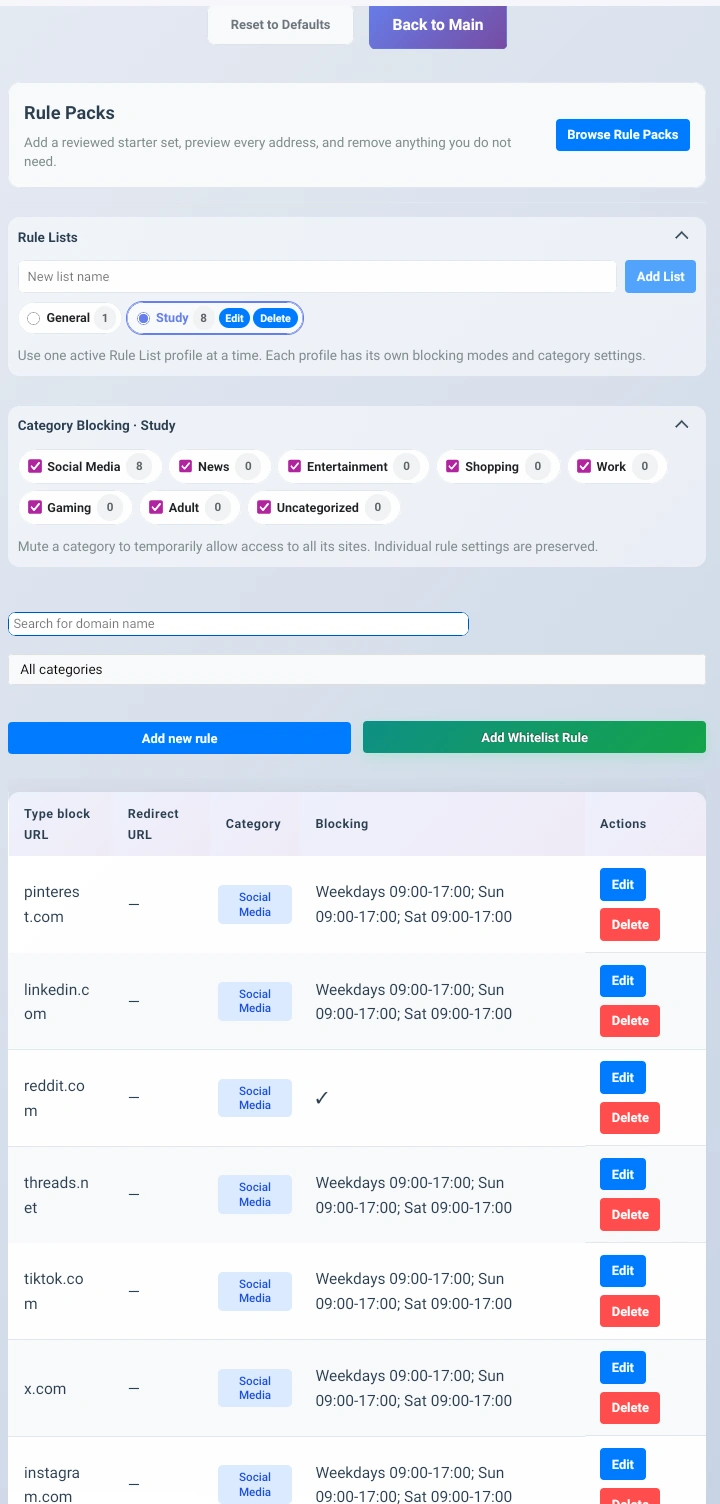
The full settings page displays the rules in the currently active profile and provides more controls than the popup.
You can edit the blocking pattern, redirect address and category. Pro users can also organize rules into named profiles such as Work or Study.
The built-in General profile is active by default. Only one Rule List profile is active during normal blocking, so switching profiles changes which rules, categories, schedules and Daily Limits are currently in effect.
Within the active profile, each Pro rule uses one of three assignment modes:
- Always, which applies the rule whenever the profile is active;
- Schedule, which applies it only during selected days and times;
- Daily limit, which allows matching pages until their daily time budget is exhausted and then starts blocking them until the next local day.
Note: Schedule and Daily limit are alternative modes for the same rule assignment, so they cannot be enabled together in one profile.
Daily Limit time is counted locally while a matching page is visibly open in the foreground. Background tabs and long browser sleep periods are not charged when continuous foreground use cannot be confirmed.
The collapsed Statistics section also contains local 7-day and 30-day charts for blocked attempts, redirects and completed Focus Sessions. These charts store aggregate counts, not visited URLs or browsing history.
A link near the top of the popup opens the full settings page whenever you need the extended controls.
Use Focus Sessions on Firefox for Android
The Focus Session section becomes visible after you create at least one blocking rule.
A Focus Session applies stricter website blocking for a limited period using your existing rules.
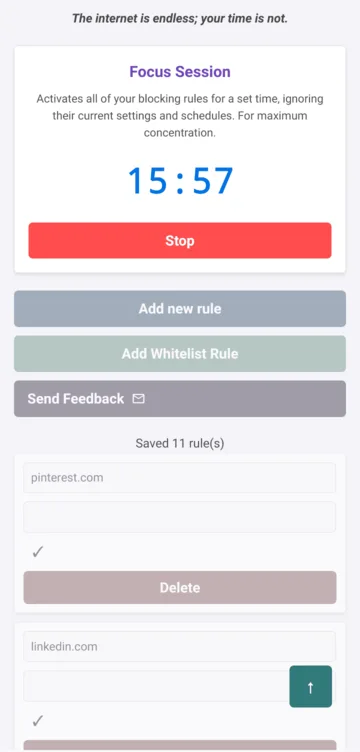
Free version
Free users receive:
- up to 10 blacklist rules;
- 25-minute Focus Sessions;
- standard blacklist blocking;
- the ability to stop an active session.
Pro version
BlockDistraction Pro adds:
- unlimited blocking rules;
- whitelist rules;
- Rule List profiles for Work, Study and other contexts;
- per-rule schedules or Daily Limits;
- custom Focus Session durations;
- Hardcore Mode without the normal Stop button;
- password protection;
- 7-day and 30-day local statistics;
- additional Focus Session modes.
Pro users can choose between two Focus Session strategies:
- Block Blacklist, which blocks websites matching the normal blacklist;
- Allow Whitelist Only, which blocks everything except websites covered by whitelist rules.
The whitelist is not a separate configuration mode. Whitelist and blacklist rules are managed together, and you choose how they are used when starting a Focus Session. Their targets must not overlap: a Whitelist rule does not act as a narrower exception to a broader Blacklist rule.
Keep the Popup Open as a Browser Tab
Firefox extension pages use internal addresses that begin with:
moz-extension://
The rest of the address contains an extension identifier that is different for every Firefox installation.
It is possible to open the BlockDistraction popup as a regular browser tab using an address similar to:
moz-extension://your-extension-id/index.html
Tip: when the popup is open as a normal tab, it can be refreshed by swiping down. You can also keep it among your other Firefox tabs instead of reopening it through the browser settings.
Do not copy another user's complete internal address because the extension identifier will be different on your device.
Pro users also have a direct button on the settings page that opens the popup in this browser-tab format.
What Happens When a Website Is Blocked?
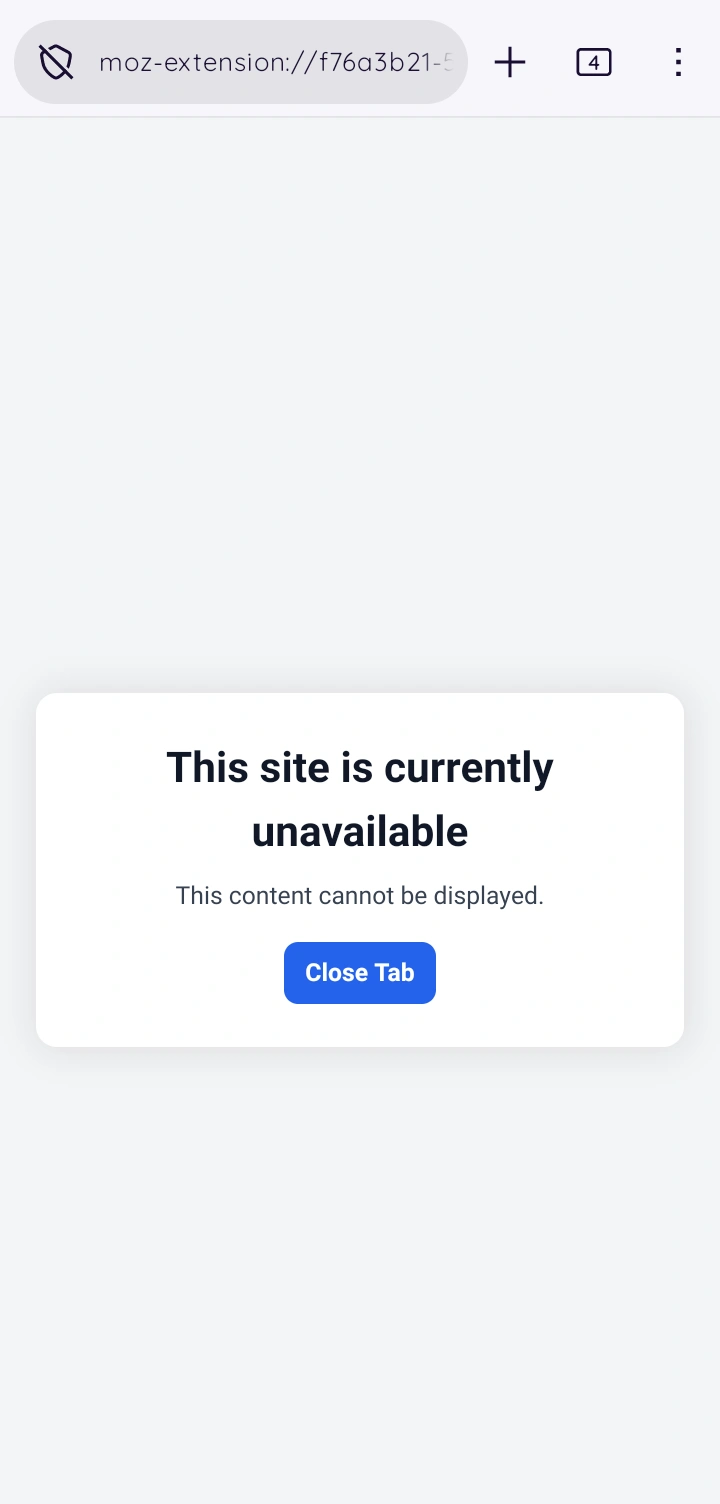
When you open an address that matches a blocking rule, BlockDistraction replaces it with a simple internal page containing a message such as:
This site is currently unavailable.
If you look at the browser address bar, you may notice that the displayed page belongs to the extension rather than the original website.
When a redirect has been configured, BlockDistraction opens the redirect destination instead of the standard blocked page.
Two Ways to Use BlockDistraction
BlockDistraction can support two different approaches to website blocking.
Quiet background blocking
You can configure your rules once and then leave the extension running in the background.
To make the experience less noticeable, disable Show notifications on the settings page.
This approach works well when you want gentle self-imposed limits without repeatedly interacting with the extension.
It can also provide basic household restrictions, although BlockDistraction is not a dedicated parental-control system. A person who can access the browser settings may still disable or remove the extension.
Active focus workspace
The second approach is more deliberate.
You can combine:
- Focus Sessions;
- Rule List profiles;
- scheduled rules;
- Daily Limits;
- password protection;
- Hardcore Mode;
- blacklist and whitelist rules.
This setup is useful when you intentionally switch into a work or study environment and want the browser to enforce stricter boundaries for a specific period.
Frequently Asked Questions
Does BlockDistraction work on Firefox Mobile?
Yes. BlockDistraction supports Firefox for Android and can block or redirect websites directly inside the browser.
Is BlockDistraction free on Firefox for Android?
Yes. The free version includes up to 10 blacklist rules and 25-minute Focus Sessions. You do not need an account to start blocking websites.
Can I block only part of a website?
Yes. A rule can contain part of a domain or URL path. Use a more specific pattern when you want to avoid matching unrelated addresses.
Can I block websites only during work hours?
Scheduled blocking is available with Pro. Choose the Schedule mode for a rule in the active profile, then select the days and time periods when it should be blocked.
Can I allow a website for a limited amount of time each day?
Yes, with Pro. Choose the Daily limit mode and set a daily time budget for the rule. Once visibly active use reaches the limit, the website is blocked until the next local day.
Can I keep separate blocking setups for work and study?
Yes, with Pro. Create named Rule List profiles and switch the active profile when your context changes.
Can I redirect a blocked website?
Yes. Enter a complete destination URL in the redirect field. Leave the field empty to use the standard BlockDistraction blocked page.
Can BlockDistraction work in private browsing?
Yes. Enable Allow extension to run in private browsing during installation or later in the Firefox extension settings.
Can I protect the extension with a password?
Password protection is available with Pro. It helps prevent impulsive changes to your rules and settings.
More Firefox Android Guides
- How to Block YouTube on Firefox for Android
- How to Block Reddit on Firefox for Android
- Schedules vs Daily Limits on Firefox Android
Install BlockDistraction from Firefox Add-ons, create your first rule and start blocking distracting websites directly on Android.
Basic website blocking is free and does not require an account or subscription.
 Install for Firefox Android