
Android setup guide
Block Websites in Microsoft Edge on Android
Block distracting websites inside Edge on Android. Start free and add Pro controls when you need them.
- 10 free rules
- No account to start
- Rules stay on your device
1. Install and open BlockDistraction
Open this page in Microsoft Edge on your Android phone. If you need the browser first, use Microsoft Edge on Google Play. Microsoft lists extension support in its Android app description.
- Tap Install from Edge Add-ons. Check that the listing is BlockDistraction – Block Site Extension by MarkAlexI.
- Tap Get on the listing. Read the permission prompt, then tap Add to install.
- Open Edge’s menu, find Extensions, and choose BlockDistraction. The position of the menu and extension controls can vary between Edge versions.
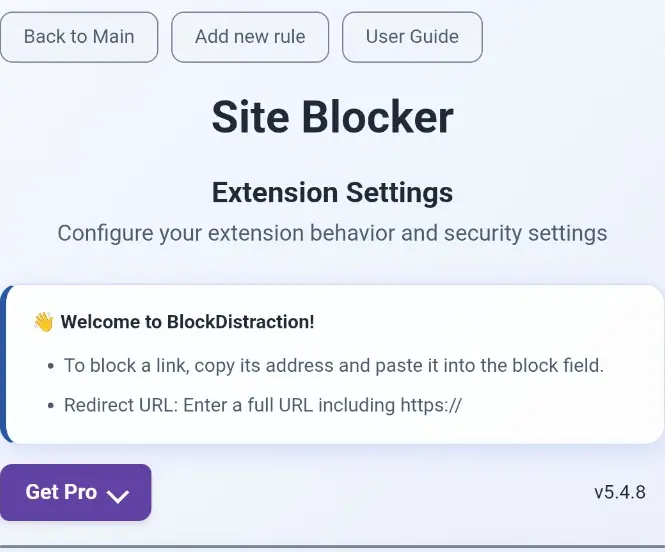
- Use BlockDistraction’s settings control to open its full Extension Settings page. This is the extension’s own page, separate from Edge’s browser settings.
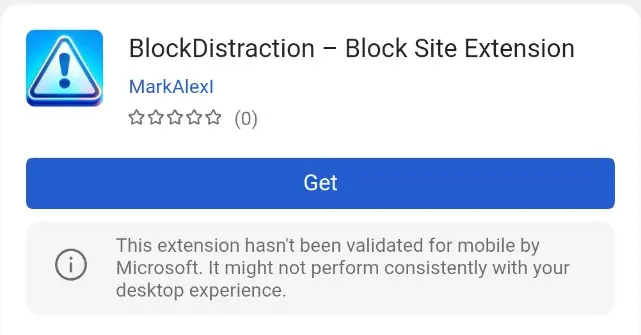
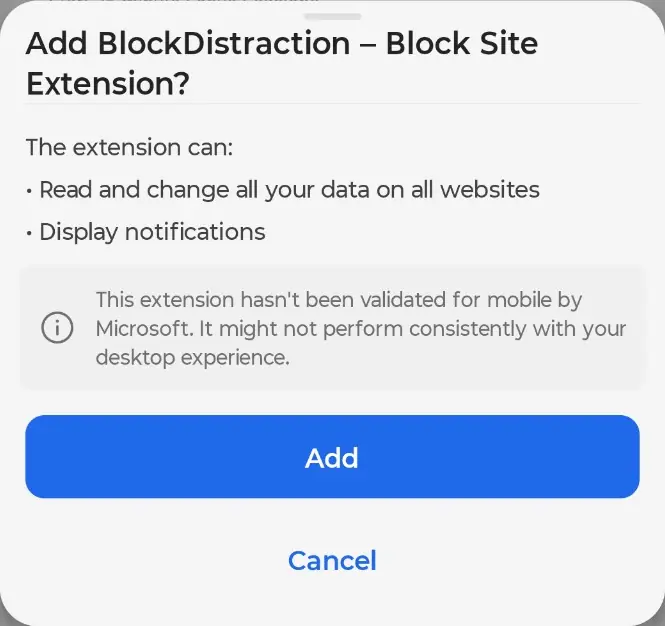
About the mobile notice: Edge may say the extension “hasn’t been validated for mobile by Microsoft.” The notice describes Microsoft’s mobile validation status and is visible in the installation flow pictured here. Mobile controls and behavior can differ from the desktop version.
Website access lets BlockDistraction apply your blocking rules; notification access is used for extension notices. Rules are processed locally. Optional technical reporting is off by default. Read the Privacy Policy for the details.
2. Block your first site and check the result
Try a complete example with YouTube’s mobile website. This blocks the website inside Edge; it does not block the separate YouTube app.
- Enter
https://m.youtube.com/directly in Edge’s address bar. - While that website is the active tab, open Extensions → BlockDistraction from Edge’s menu.
- Scroll to Block This Site. Check that it shows
m.youtube.com, then tap it. The shortcut adds a site-blocking rule directly. - Wait for the saved rule to appear in BlockDistraction’s list. Close the extension panel and enter
https://m.youtube.com/in Edge again.
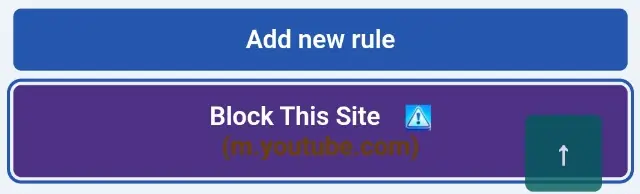
Expected result: Edge stops the page from opening instead of showing the YouTube feed. Reopen the saved rules to check the entry. If you already have 10 free rules, remove an unused one before adding this example.
To undo the example, delete the rule in BlockDistraction. With Strict Mode enabled, deletion includes a 10-second countdown.
3. Block YouTube Shorts while keeping ordinary videos
For a narrower rule, first remove the whole-site YouTube rule from the previous example. Otherwise it will continue to block normal videos too.
- Choose Add new rule in BlockDistraction.
- Enter
youtube.com/shortsas the blocked address. Leave the redirect address empty, keep ordinary Always blocking, and save the rule. - Reopen a Shorts address in Edge to check that it is blocked. Then open a normal YouTube video or the homepage to check that the broader site is still available.
youtube.com/shorts
This is a URL-path rule, so it targets Shorts pages rather than hiding a button in YouTube’s interface. For more examples, see the rule-matching guide.
What you can do free, and what Pro adds
Start free
- Block or redirect with up to 10 rules.
- Use Strict Mode to add a pause before deleting a rule.
- Start 25-minute Focus Sessions.
No BlockDistraction account or payment is needed to start.
Add control with Pro
Get unlimited rules, Rule List profiles, schedules, Daily Limits, password protection, local statistics, rule backup/import, custom Focus durations and Hardcore Mode.
Compare all Free and Pro featuresKeep the page inside Edge
BlockDistraction applies to pages inside Edge. It does not control the YouTube or Reddit app, other browsers, or an in-app browser opened by another Android app.
If tapping a link launches a separate app, copy the address and paste it into Edge’s address bar for your first check. For regular use, review that app’s Android link-handling settings. Look for labels such as Open by default, Open supported links or Set as default; names and choices depend on your Android version and phone.
Choose the option that keeps the relevant web links in your browser, and select Edge as your default browser if that matches how you want to browse. BlockDistraction does not change these device settings for you.
Read more about the difference between a browser website blocker and an Android app blocker.
Quick answers
What should I check if a site still opens?
- Check that the page is in Edge, rather than a separate app or in-app browser.
- Make sure BlockDistraction is enabled in Edge’s Extensions menu and has the website access requested during installation.
- Check the saved address against the address Edge actually opens, including mobile hostnames and URL paths.
- If you use Pro, check the active Rule List profile, the rule’s Always/Schedule/Daily Limit mode, and any active Focus Session.
- After saving, close the extension panel and reload or reopen the address. Update Edge and BlockDistraction if the extension controls do not open.
For more help, open Support. Include your Edge and extension versions and describe which step fails; keep your license key private.
How do I activate an existing Pro license?
Open My Account and copy your license key. In BlockDistraction’s settings, open Get Pro, enter the key in the license activation form and activate it. See the illustrated activation guide.
The same Universal Pro key works across supported BlockDistraction browsers, including supported Edge versions on Android. Activate it in each installed copy.
How do I move rules from my computer?
A shared Pro license does not automatically copy your rules. Blocking lists belong to each installed copy of BlockDistraction.
With Pro active, open Settings → Rules Management → Export Rules on the computer. Transfer that JSON backup to your phone, then choose Import Rules in the same section in Edge’s BlockDistraction settings. Read the import confirmation before applying the backup. The backup guide explains the process.
Make the next distracting visit a deliberate choice
Install BlockDistraction in Edge, add one free rule, and reopen the site to check it.
Updated October 26, 2026. Microsoft’s Android app listing documents extension support. Browser menus can change between versions.