 BlockDistraction
Making BlockDistraction More Accessible: Keyboard, Focus, and Clearer Feedback
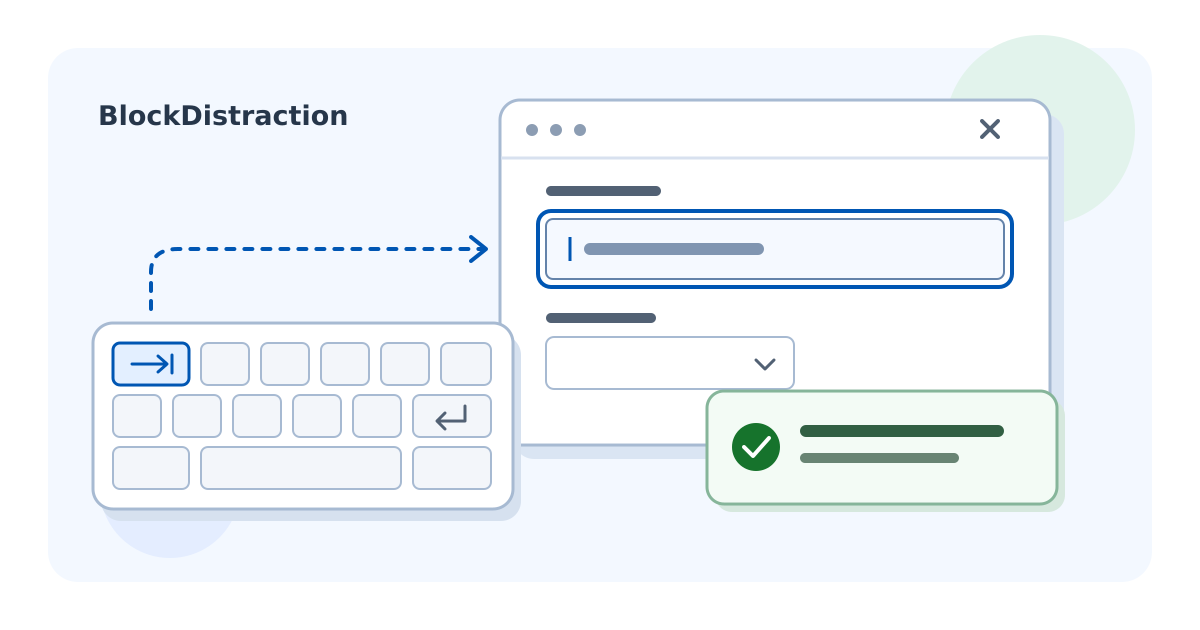
A website blocker asks you to make a few decisions, then get on with your day. You might add an address, adjust a schedule or start a Focus Session. Those small tasks should be easy to follow when you use a keyboard, enlarge the page or use a screen reader.
As the developer of BlockDistraction, I have been working through these everyday interactions. Accessibility, often shortened to a11y, is part of making the extension easier to use. The recent changes cover how controls are named, where keyboard focus goes, how errors are explained and how much effort it takes to read the interface.
Know What a Control Does
The expandable sections in Settings now work with Enter and Space. Their open or closed state is available to assistive technology, and controls inside a closed section stay out of the keyboard navigation order. Reopening a section keeps its draft values.
The Category and Blocking selectors have explicit, localized names. Rule state buttons expose both the action and the current state. A visible focus outline helps you follow your position as you move through the interface with Tab and Shift + Tab.
An everyday example: move to a Settings section, open it with the keyboard, change a value and continue to the next control. Each step should give you enough information to know where you are.
Continue Where You Left Off
Opening a dialog changes the context of your work. Password, schedule, Feedback and Rule Packs dialogs now have meaningful names and a defined starting point for keyboard focus. While a modal dialog is open, keyboard navigation stays within it.
Dismissing a dialog returns focus to the control that opened it, with a useful fallback if that control is no longer available. Saving a rule also leaves focus at a relevant action, so you can continue adding or editing rules.
Timing matters here. If a save takes a moment and you have already moved to Search, its completion respects that later choice. The interface should let you continue the task you have chosen.
Correct a Mistake Without Starting Again
A mistyped redirect address or an invalid Daily Limit should be straightforward to fix. Rule validation in Settings now keeps readable messages alongside the editor, associates them with the relevant controls and includes links that take you to those controls. Your draft stays available for correction.
After Save, focus moves to the first invalid field when you are still working at the save action. If you have already moved elsewhere, the error remains available and a status message lets you know that something needs attention. Correcting a value clears its old validation message.
For example: enter a rule and an incomplete redirect address, then save. Follow the redirect error back to its field, correct the address and save again. The other values you entered are still there.
Repeated activation of Save is also guarded while a request is in progress. A saved change that is awaiting browser synchronization receives a pending message, helping you distinguish it from an edit that was rejected.
Read Feedback Without Losing Your Place
Notifications now use a status region that assistive technology can identify, while keyboard focus stays with your current task. Success messages in Settings use nonblocking feedback, so acknowledging a separate browser alert is no longer part of saving a rule.
Rapid messages are queued, including repeated messages with the same text. Notifications wait while the page is hidden or a modal dialog is open. Longer text gets more reading time, and the display timer pauses while you hover over or keyboard-focus the notification.
Read and Edit at a Comfortable Size
The familiar blue and purple interface has clearer text contrast, form boundaries and keyboard focus. Narrow layouts and increased zoom get more flexible editor buttons, schedule controls and dialog layouts. Long translated messages can wrap within the available space.
The interface also responds to supported preferences for reduced motion and high-contrast display. Right-to-left layouts follow the language direction while website address fields keep their left-to-right editing direction. Statistics include exact text values, giving you another way to read the information shown in the chart.
Help Shape the Next Improvements
These details matter during ordinary use: working from a keyboard, reading enlarged text or correcting a rule in a hurry. My aim is to make BlockDistraction predictable enough that you can spend your attention on what you wanted to do next.
If an interaction gets in your way, tell me about it. The action you tried, your browser and your device are useful starting points. If you use assistive technology, mentioning it can help me understand the interaction. The User Guide explains the main rule and Focus workflows.
For another side of my work on web accessibility, you can also visit a11y.pp.ua.